Archive | Embedded RSS feed for this section

Artificial Intelligence on the Jetson Nano – Setup & Configuration

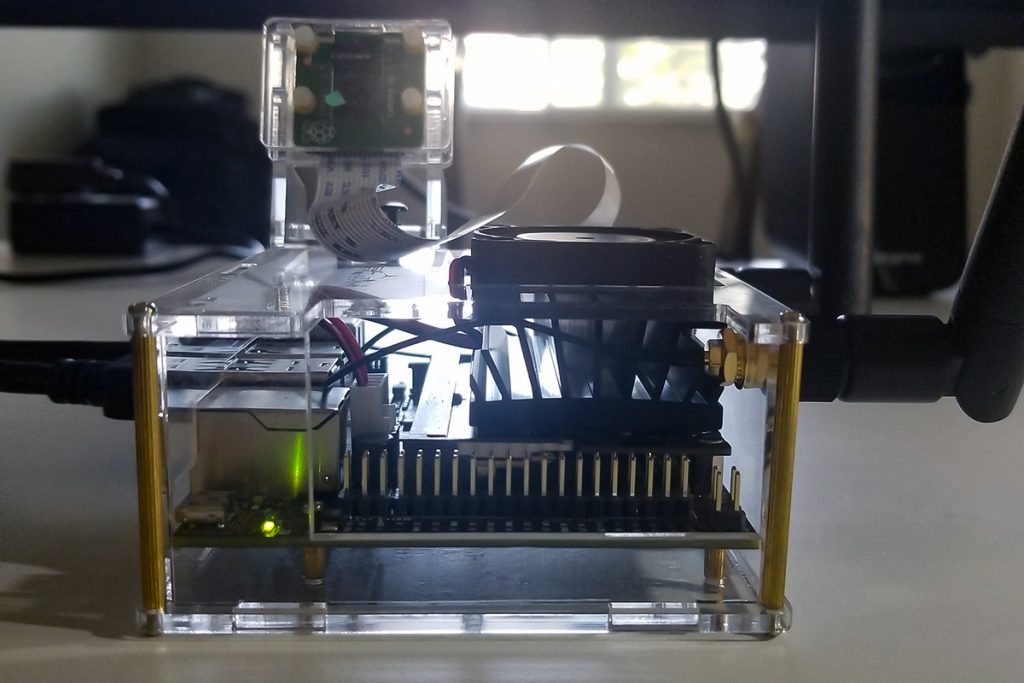
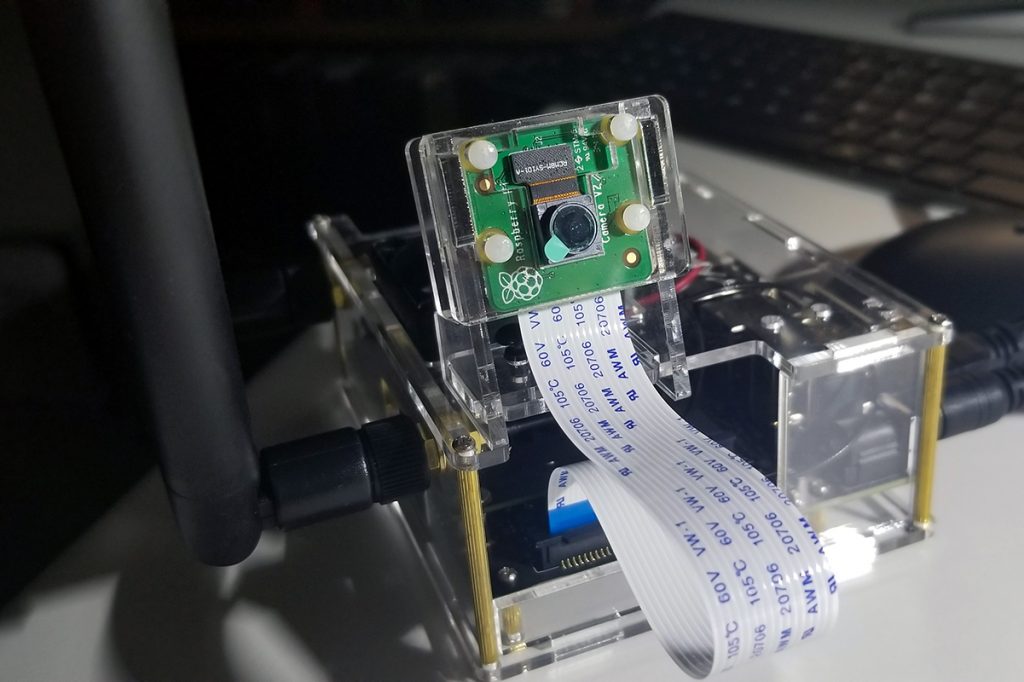
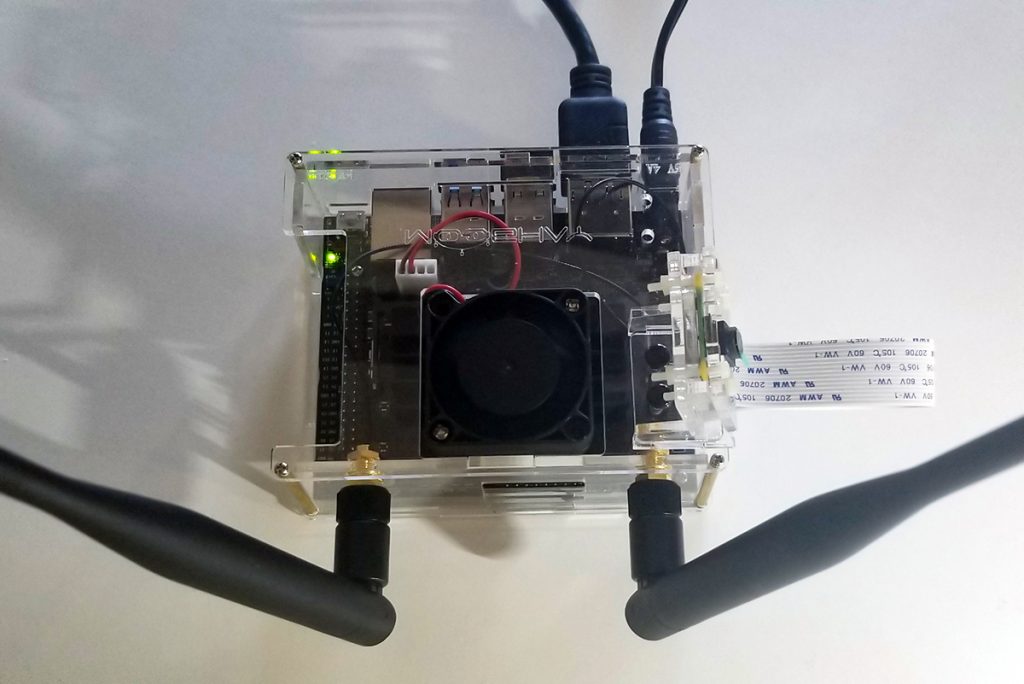
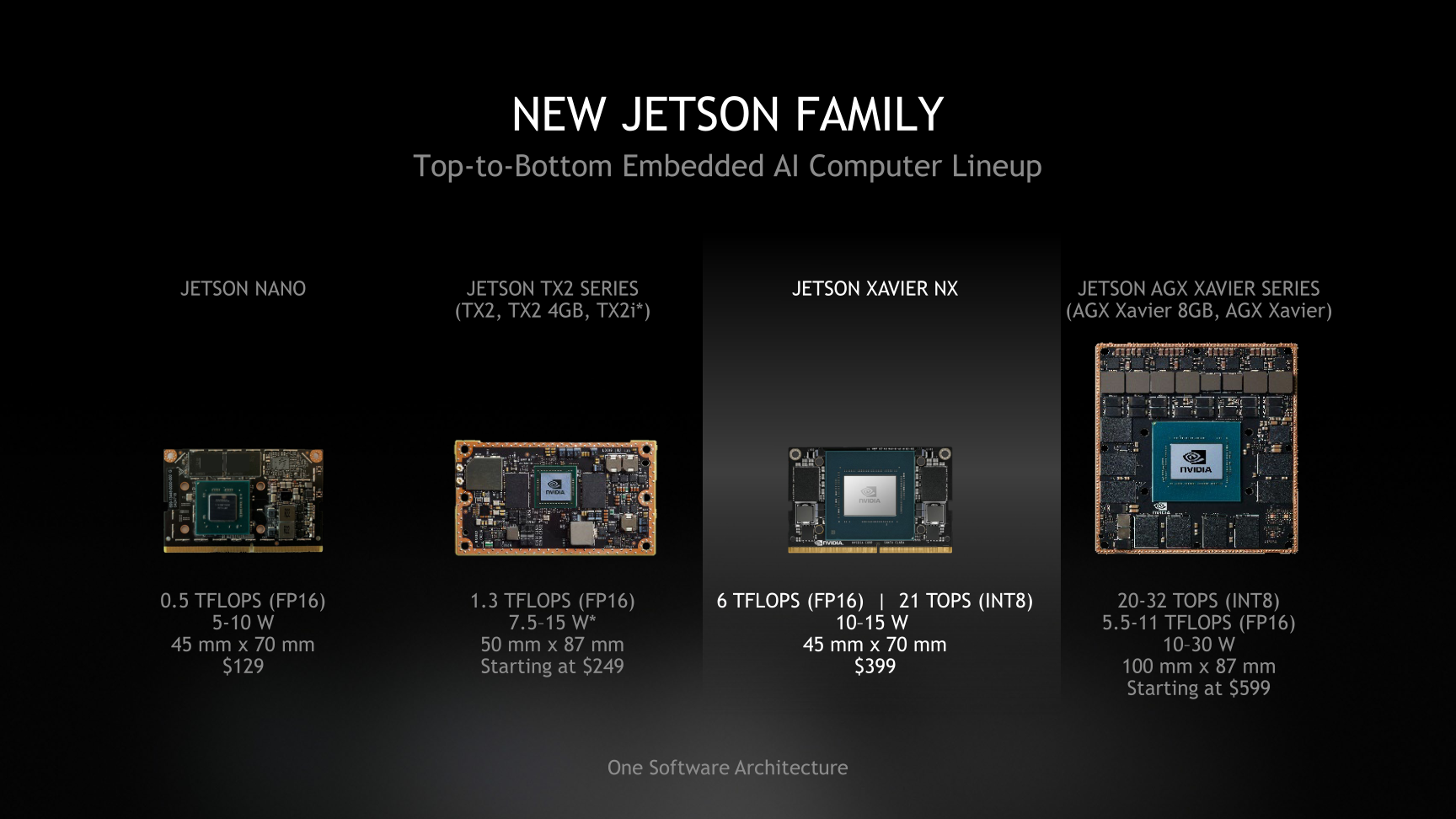
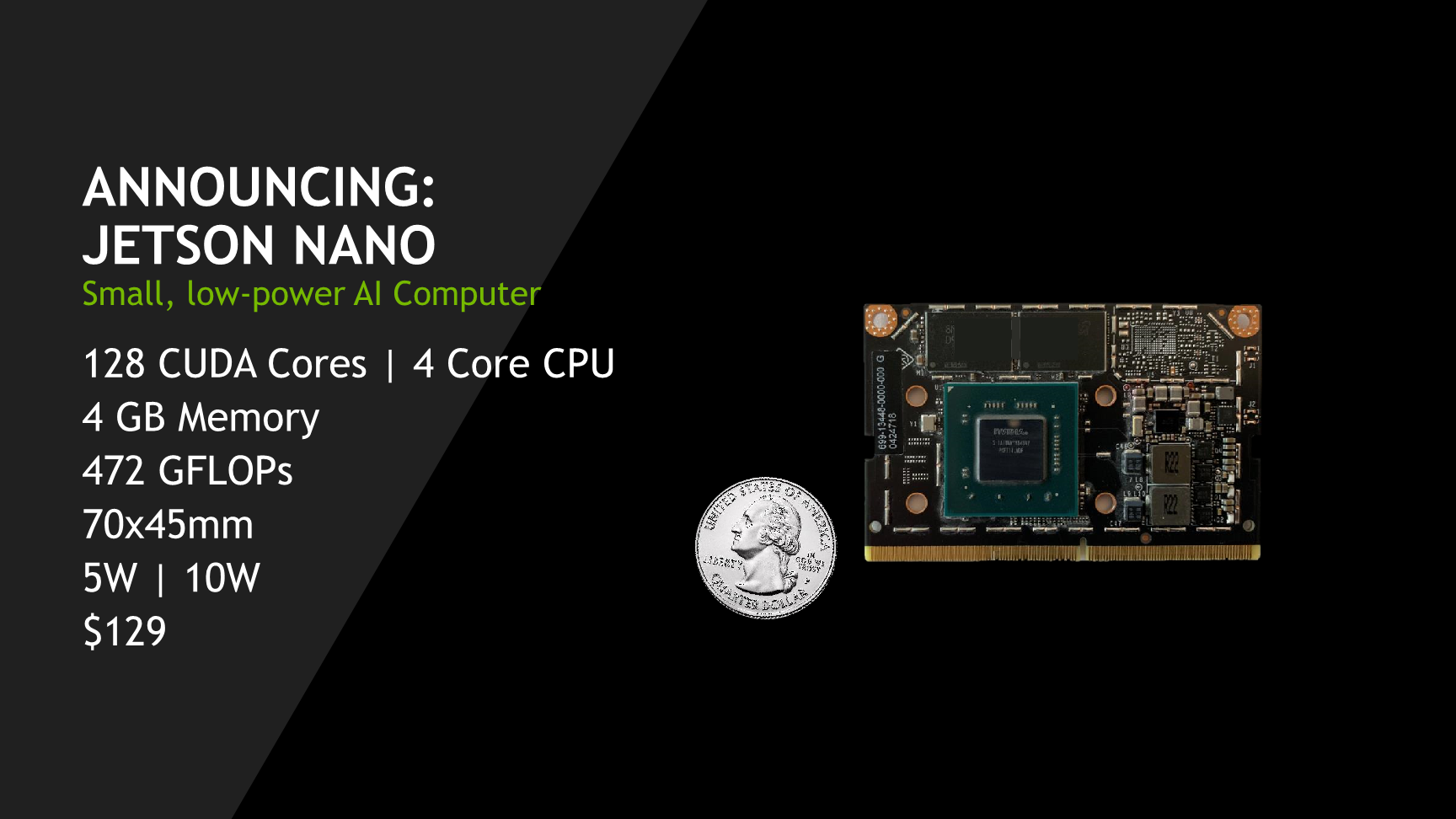
The Jetson Nano AI system set up was completed in preparation for various projects ahead. The process was very involved as it included the physical construction of the AI system hardware to also correspond to the associated Linux OS and GUI (Ubuntu). All configurations were completed such as the necessary Linux and Ubuntu applications. To set up the operating system with a new microSD card, 128GB is recommended for plenty of capacity. To format the microSD card, download the SD card utility from the sdcard.org site and install it to initialize the card. Once the card is formatted, download and install the operating system image from the NVidia Jetson nano developers website. To install the selected image, install and use the balenaEtcher utility. The image file from NVidia remains in its compressed format (zip file) as installed onto the microSD card. Once the MicroSD card is ready, insert it in the Jetson Nano and boot up the system.

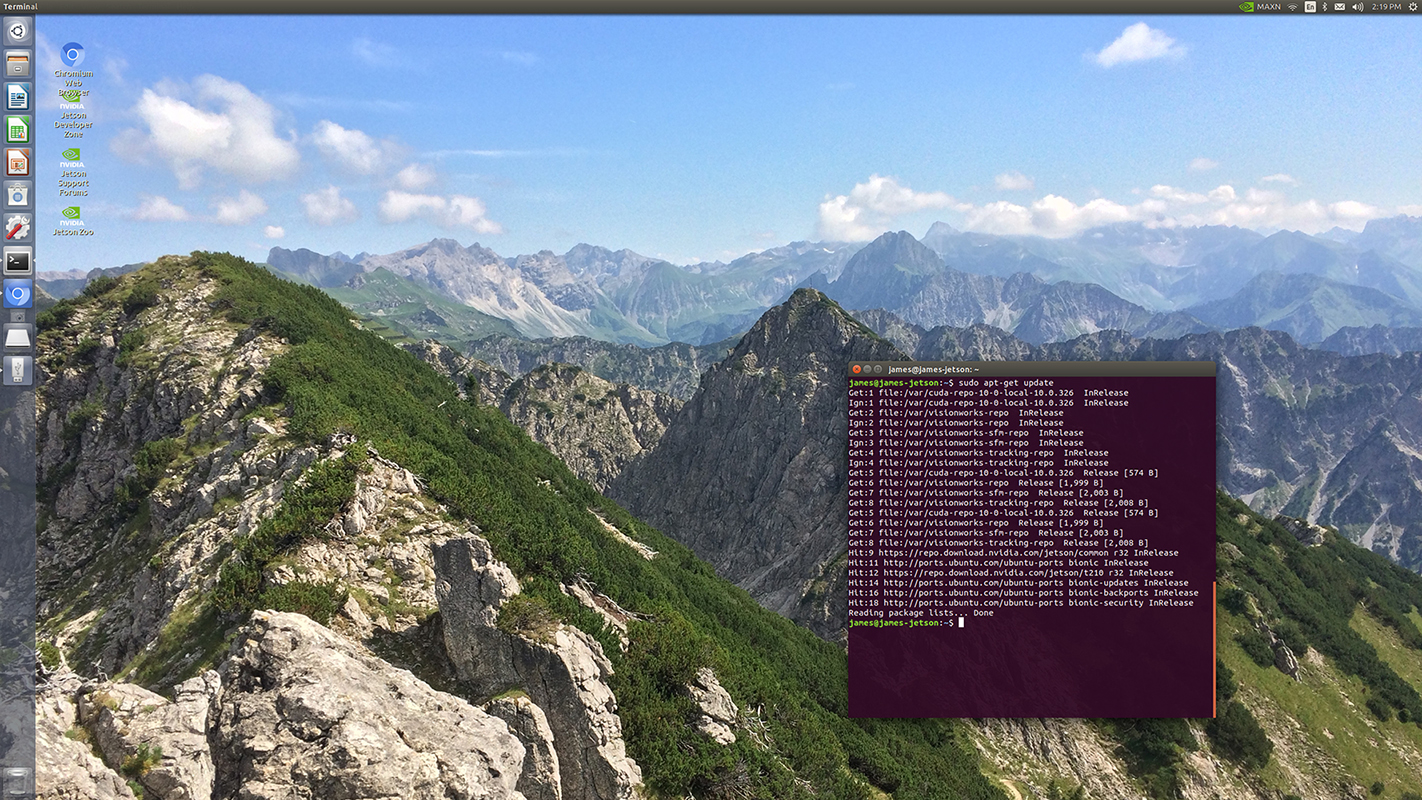
Once the system is up and running, open a terminal window to execute a sudo apt-get update to get the necessary Linux package updates. Thereafter, update the Ubuntu application itself as well.

It is certain that additional language setups are required as well such as Python and OpenCV.

There are numerous programs that will get written and made operational to involve object and facial detection, sensors, actuators, and so forth. In the days, weeks, and months coming various projects make use of this set up as a common platform of progress and advancement.

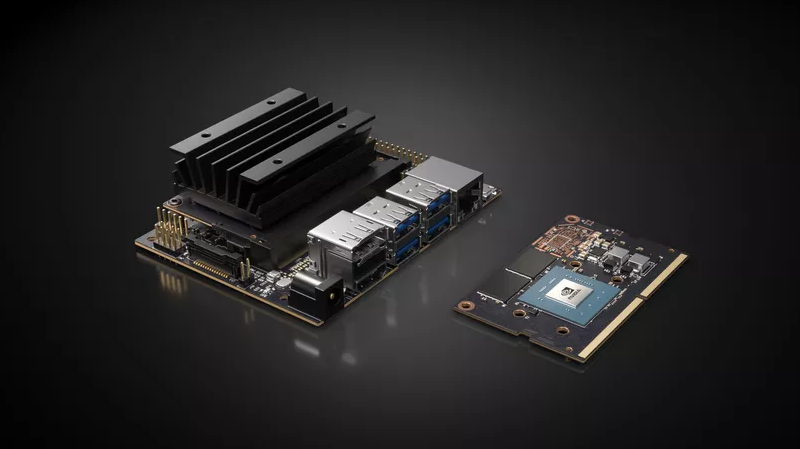
The Jetson Nano AI operating system originates from NVidia for developers to originate applications in deep learning and artificial intelligence. To that end, following posts after set up and configuration incrementally move towards grow and new discover.

Linux OS with Ubuntu Environment
Linux Operating System Ubuntu with NVIDIA GPU support. Superior graphical processing power necessary for camera sensor image capture, collection, and instruction handling.
External Header for GPIO Port Interface Connectivity
Raspberry Pi Camera with Ribbon Cable Connectivity
WIFI Antennas (external / optional capability with expansion card), Cooling Fan, Clear Acrylic Case, and Connections. To include HDMI, 10W Power Receptacle (5VDC 4A wall adapter), RJ45, USB-A and USB-B Micro ports.
Continue Reading ·

LED Blink Illumination in Sequential Morse Code

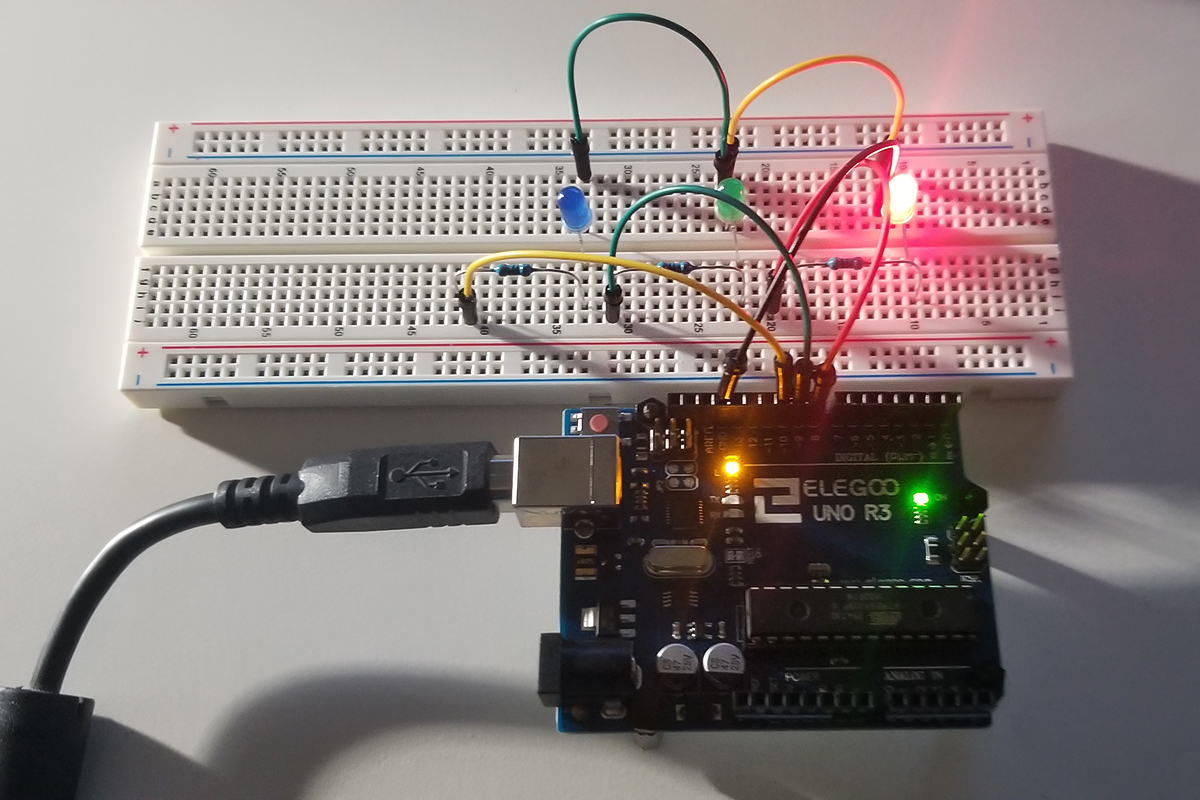
This project involves a simple circuit that involves three LEDs that illuminate in succession to indicate the presence of an SOS signal in Morse Code. The physical set up of the physical set up involves a red, green, and blue LED connected to three separate ports on an Arduino Uno. All share the same ground path and are current-limited by separate 330-ohm resistors. We have here a hardware set up of code to support a (dot, dot, dot, dash, dash, dash, dot, dot, dot) repeating pattern of illumination as a visual indication of messaging (••• – – – •••).

Each dot is a shorter on/off period of time as compared to a longer period for a sequence of three dashes. Following another three dots until the cycle repeats itself after a short delay.


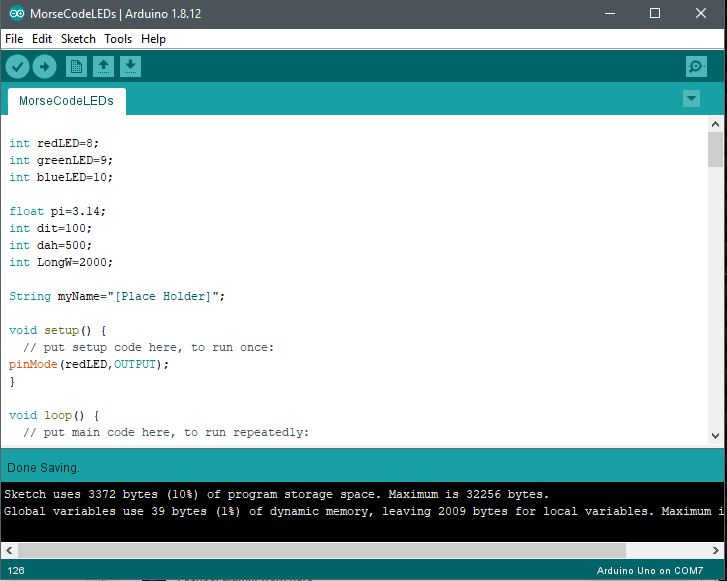
Arduino IDE:

Arduino Code:

int redLED=8;
int greenLED=9;
int blueLED=10;

float pi=3.14;
int dit=100;
int dah=500;
int LongW=2000;

String myName=”[Place Holder]”;

void setup() {
// put setup code here, to run once:
pinMode(redLED,OUTPUT);
}

void loop() {
// put main code here, to run repeatedly:

digitalWrite(redLED,HIGH);
delay(dit);
digitalWrite(redLED,LOW);
delay(dit);

digitalWrite(redLED,HIGH);
delay(dit);
digitalWrite(redLED,LOW);
delay(dit);

digitalWrite(redLED,HIGH);
delay(dit);
digitalWrite(redLED,LOW);
delay(dit);

digitalWrite(greenLED,HIGH);
delay(dit);
digitalWrite(greenLED,LOW);
delay(dit);

digitalWrite(greenLED,HIGH);
delay(dit);
digitalWrite(greenLED,LOW);
delay(dit);

digitalWrite(greenLED,HIGH);
delay(dit);
digitalWrite(greenLED,LOW);
delay(dit);

digitalWrite(blueLED,HIGH);
delay(dit);
digitalWrite(blueLED,LOW);
delay(dit);

digitalWrite(blueLED,HIGH);
delay(dit);
digitalWrite(blueLED,LOW);
delay(dit);

digitalWrite(blueLED,HIGH);
delay(dit);
digitalWrite(blueLED,LOW);
delay(dit);

digitalWrite(redLED,HIGH);
delay(dah);
digitalWrite(redLED,LOW);
delay(dah);

digitalWrite(redLED,HIGH);
delay(dah);
digitalWrite(redLED,LOW);
delay(dah);

digitalWrite(redLED,HIGH);
delay(dah);
digitalWrite(redLED,LOW);
delay(dah);

digitalWrite(greenLED,HIGH);
delay(dah);
digitalWrite(greenLED,LOW);
delay(dah);

digitalWrite(greenLED,HIGH);
delay(dah);
digitalWrite(greenLED,LOW);
delay(dah);

digitalWrite(greenLED,HIGH);
delay(dah);
digitalWrite(greenLED,LOW);
delay(dah);

digitalWrite(blueLED,HIGH);
delay(dah);
digitalWrite(blueLED,LOW);
delay(dah);

digitalWrite(blueLED,HIGH);
delay(dah);
digitalWrite(blueLED,LOW);
delay(dah);

digitalWrite(blueLED,HIGH);
delay(dah);
digitalWrite(blueLED,LOW);
delay(dah);

digitalWrite(redLED,HIGH);
delay(dit);
digitalWrite(redLED,LOW);
delay(dit);

digitalWrite(redLED,HIGH);
delay(dit);
digitalWrite(redLED,LOW);
delay(dit);

digitalWrite(redLED,HIGH);
delay(dit);
digitalWrite(redLED,LOW);
delay(dit);

digitalWrite(greenLED,HIGH);
delay(dit);
digitalWrite(greenLED,LOW);
delay(dit);

digitalWrite(greenLED,HIGH);
delay(dit);
digitalWrite(greenLED,LOW);
delay(dit);

digitalWrite(greenLED,HIGH);
delay(dit);
digitalWrite(greenLED,LOW);
delay(dit);

digitalWrite(blueLED,HIGH);
delay(dit);
digitalWrite(blueLED,LOW);
delay(dit);

digitalWrite(blueLED,HIGH);
delay(dit);
digitalWrite(blueLED,LOW);
delay(dit);

digitalWrite(blueLED,HIGH);
delay(dit);
digitalWrite(blueLED,LOW);
delay(dit);

delay(LongW);

}

Further Project Details: -Paul McWhorter

Continue Reading ·

Frequency Selectability Experiment with Arduino

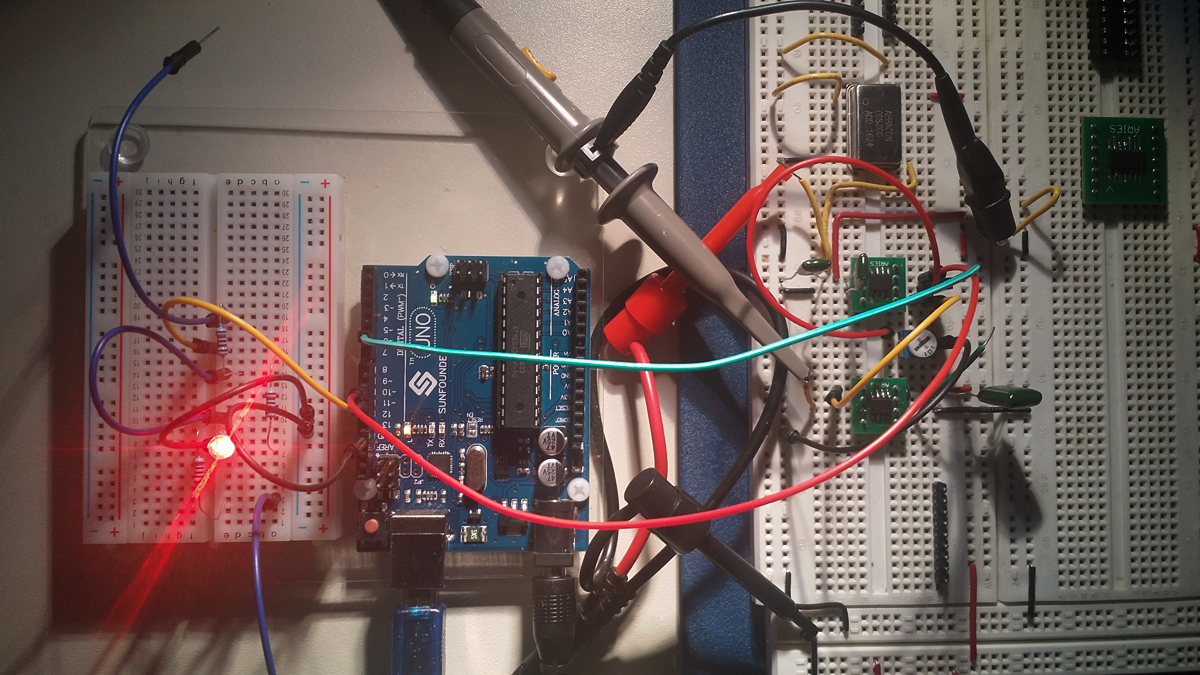
Here is a short effort to program the control of crystal frequency output. 8MHz as the standing frequency with multipliers asserted one at a time.

This is an experiment to encode in binary a selectable output pulse rate from a 555 timer. Where selected GPIO pins become asserted to set the desired rate. Over an Uno connection with code, I set up a user interface to push millions of pulses through to a defined output. All in a single second each instance. Staring from a single pulse rate with multipliers of 16, 20, 32, and 40. Each one separately is chosen by simply entering what a user wants over a GUI interface.


Continue Reading ·