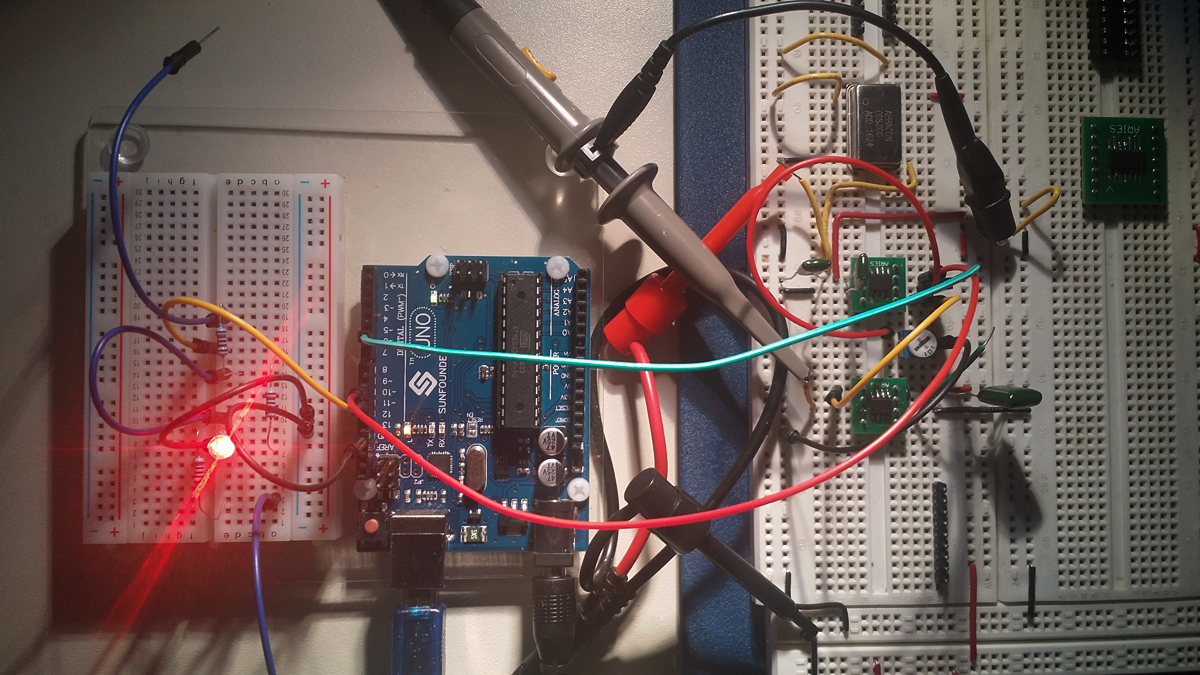
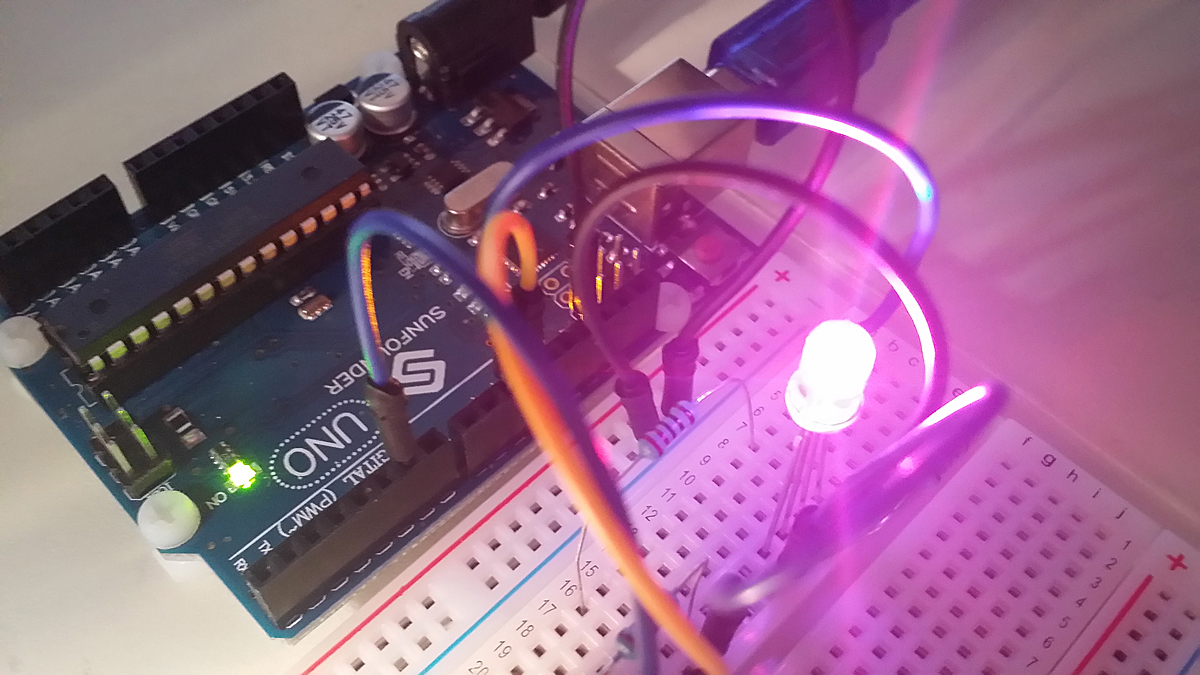
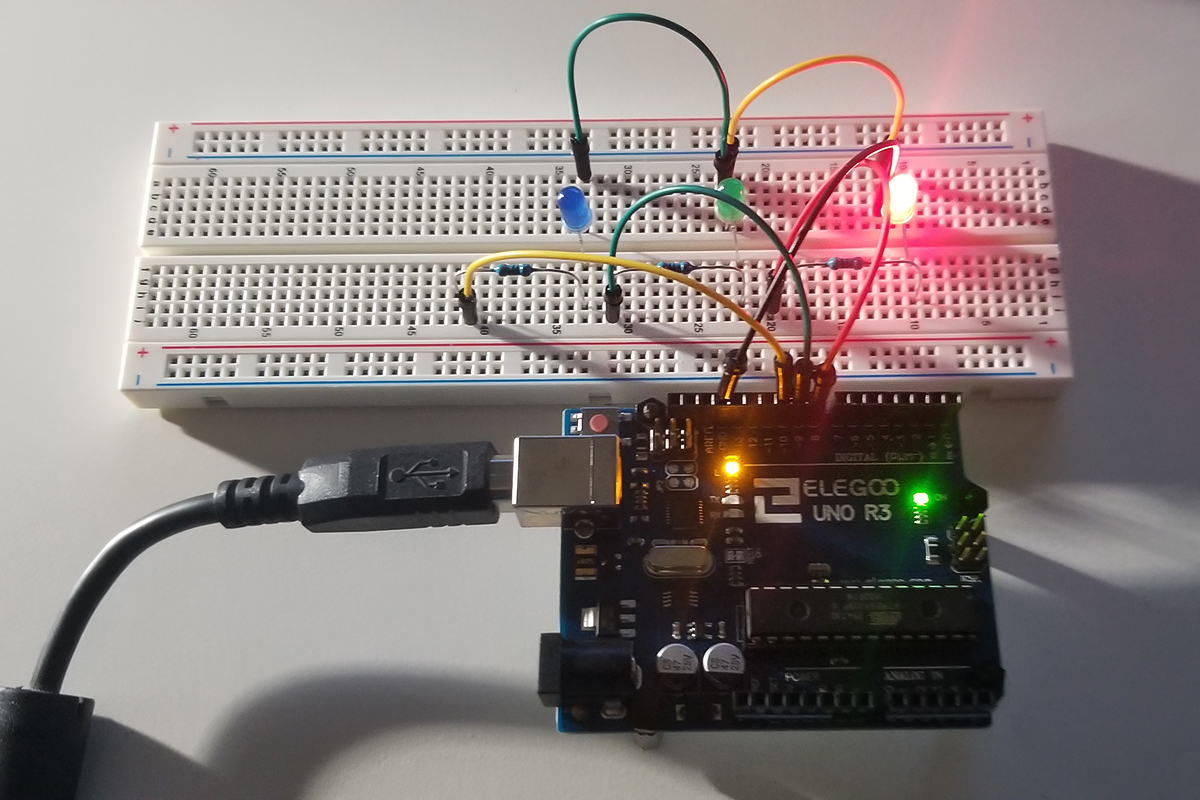
This project involves a simple circuit that involves three LEDs that illuminate in succession to indicate the presence of an SOS signal in Morse Code. The physical set up of the physical set up involves a red, green, and blue LED connected to three separate ports on an Arduino Uno. All share the same ground path and are current-limited by separate 330-ohm resistors. We have here a hardware set up of code to support a (dot, dot, dot, dash, dash, dash, dot, dot, dot) repeating pattern of illumination as a visual indication of messaging (••• – – – •••).
Each dot is a shorter on/off period of time as compared to a longer period for a sequence of three dashes. Following another three dots until the cycle repeats itself after a short delay.
Arduino IDE:
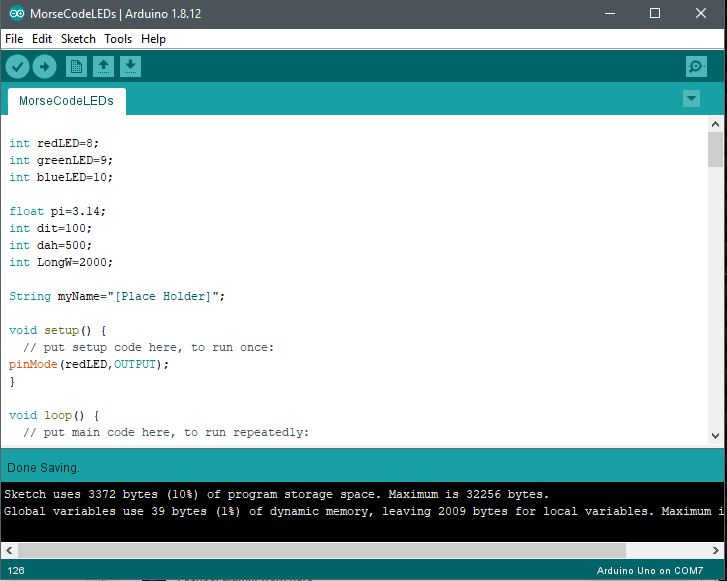
Arduino Code:
int redLED=8;
int greenLED=9;
int blueLED=10;
float pi=3.14;
int dit=100;
int dah=500;
int LongW=2000;
String myName=”[Place Holder]”;
void setup() {
// put setup code here, to run once:
pinMode(redLED,OUTPUT);
}
void loop() {
// put main code here, to run repeatedly:
digitalWrite(redLED,HIGH);
delay(dit);
digitalWrite(redLED,LOW);
delay(dit);
digitalWrite(redLED,HIGH);
delay(dit);
digitalWrite(redLED,LOW);
delay(dit);
digitalWrite(redLED,HIGH);
delay(dit);
digitalWrite(redLED,LOW);
delay(dit);
digitalWrite(greenLED,HIGH);
delay(dit);
digitalWrite(greenLED,LOW);
delay(dit);
digitalWrite(greenLED,HIGH);
delay(dit);
digitalWrite(greenLED,LOW);
delay(dit);
digitalWrite(greenLED,HIGH);
delay(dit);
digitalWrite(greenLED,LOW);
delay(dit);
digitalWrite(blueLED,HIGH);
delay(dit);
digitalWrite(blueLED,LOW);
delay(dit);
digitalWrite(blueLED,HIGH);
delay(dit);
digitalWrite(blueLED,LOW);
delay(dit);
digitalWrite(blueLED,HIGH);
delay(dit);
digitalWrite(blueLED,LOW);
delay(dit);
digitalWrite(redLED,HIGH);
delay(dah);
digitalWrite(redLED,LOW);
delay(dah);
digitalWrite(redLED,HIGH);
delay(dah);
digitalWrite(redLED,LOW);
delay(dah);
digitalWrite(redLED,HIGH);
delay(dah);
digitalWrite(redLED,LOW);
delay(dah);
digitalWrite(greenLED,HIGH);
delay(dah);
digitalWrite(greenLED,LOW);
delay(dah);
digitalWrite(greenLED,HIGH);
delay(dah);
digitalWrite(greenLED,LOW);
delay(dah);
digitalWrite(greenLED,HIGH);
delay(dah);
digitalWrite(greenLED,LOW);
delay(dah);
digitalWrite(blueLED,HIGH);
delay(dah);
digitalWrite(blueLED,LOW);
delay(dah);
digitalWrite(blueLED,HIGH);
delay(dah);
digitalWrite(blueLED,LOW);
delay(dah);
digitalWrite(blueLED,HIGH);
delay(dah);
digitalWrite(blueLED,LOW);
delay(dah);
digitalWrite(redLED,HIGH);
delay(dit);
digitalWrite(redLED,LOW);
delay(dit);
digitalWrite(redLED,HIGH);
delay(dit);
digitalWrite(redLED,LOW);
delay(dit);
digitalWrite(redLED,HIGH);
delay(dit);
digitalWrite(redLED,LOW);
delay(dit);
digitalWrite(greenLED,HIGH);
delay(dit);
digitalWrite(greenLED,LOW);
delay(dit);
digitalWrite(greenLED,HIGH);
delay(dit);
digitalWrite(greenLED,LOW);
delay(dit);
digitalWrite(greenLED,HIGH);
delay(dit);
digitalWrite(greenLED,LOW);
delay(dit);
digitalWrite(blueLED,HIGH);
delay(dit);
digitalWrite(blueLED,LOW);
delay(dit);
digitalWrite(blueLED,HIGH);
delay(dit);
digitalWrite(blueLED,LOW);
delay(dit);
digitalWrite(blueLED,HIGH);
delay(dit);
digitalWrite(blueLED,LOW);
delay(dit);
delay(LongW);
}
Further Project Details: -Paul McWhorter