Archive | Engineering RSS feed for this section

Voltage Measurement by analogRead Operation

A useful way of reading a voltage signal level is through an Analog Input port on the Arduino. With accompanied code to collect, interpret, calculate, display, and act upon a static of dynamic voltages from a circuit, discrete numerical values are presented to a user. In this project, those values are displayed via the Arduino Sketch Serial Monitor. As necessary to bring those values together, in an effort to read an actual voltage, it is necessary to build a circuit or tap an existing circuit, and write the code to get the readings desired. In this case, it is important to also perform a conversion of read values from binary equivalent numbers due to the Arduino UNO in this project that uses a 10-bin A/D converter (210 – 10-bit resolution or 1024 distinct values for a single point of measurement).

There are numerous basic applications from this function as a separate or partitioned segment of capability that pertains to other relevant purposes. The reason it is so important to understand this capability is because of its relevance as a fundamental building block elsewhere. Just as there are many other building blocks, this is a key capability that has a bearing on how projects come together using both a combination of hardware and software.

This code includes variables to initialize conditions by which the entire program operates. These variables must be declared using a data type that specifies how they are acted upon. In this example, integer and float data types get declared to establish precision for accuracy and proper computations or handling. Afterward, the program involves set up commands to configure the program and operate functions as intended. Finally, the void loop() function provides for the instructions to execute programmatically.

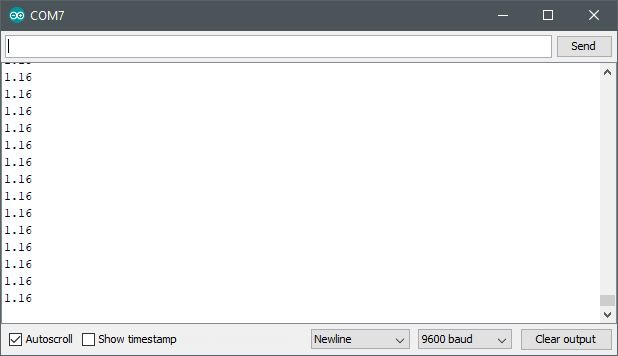
In this example, under the void loop(), the physical voltage read into the analog port is the value presented to the analog-to-digital converter. As this value is stored into variable memory readVal, it is multiplied by a coefficient (5./1023.). This calculation becomes necessary as the numerical value read into the readVal memory isn’t a voltage level as given by a meter. So, the calculation of 5VDC ÷ 1023 values gives a ratio of two maximum values as represented as voltage (numerator) and resolution (denominator). This calculation normalizes the digital value read at the analog port input to a voltage value read into memory (V2) or displayed as desired. V2, in turn, is read out at the serial monitor utility from the Arduino Sketch IDE to make tangible the entire operation. Meaning, a readout of voltage using an Arduino module and a host computer instead of a separate dedicated meter.

// declare variables
int readPin=A3;
int readVal;
float V2=0;
int delayTime=500;

void setup() {
// put setup code here, to run once while using any relevant variable declared above

pinMode(readPin,INPUT);
Serial.begin(9600);
}

void loop() {
// put main code here, to run repeatedly. runs in a continuous loop until interrupted or physically halted

readVal=analogRead(readPin);
V2=(5./1023.)*readVal;
Serial.println(V2);
delay(delayTime);

}
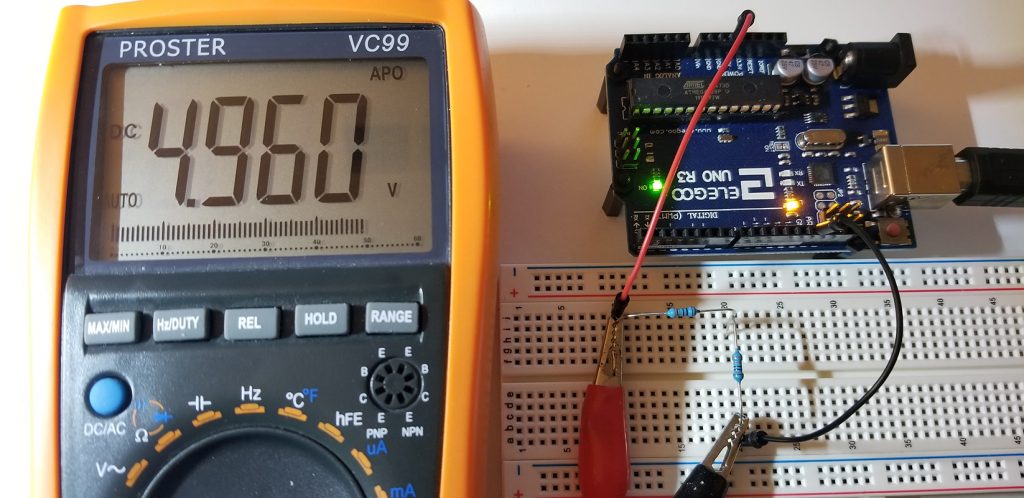
Stable Circuit Operating Voltage
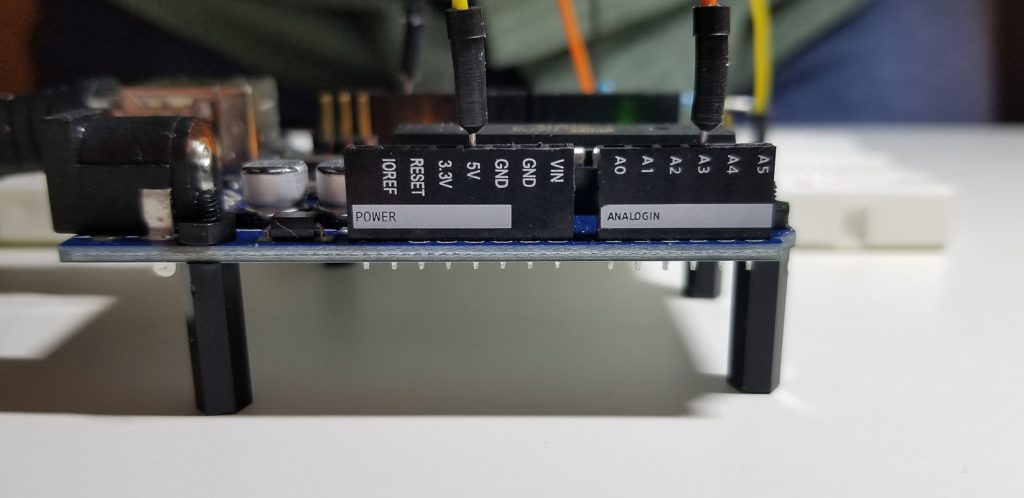
Port Connections. Reference Voltage & Analog Input Voltage
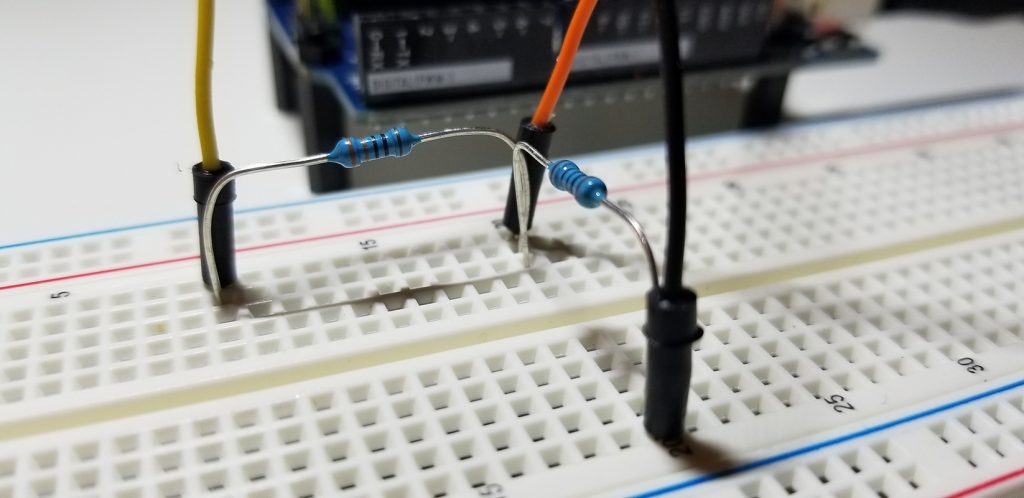
Simple Voltage Divider Circuit (330Ω & 100Ω)
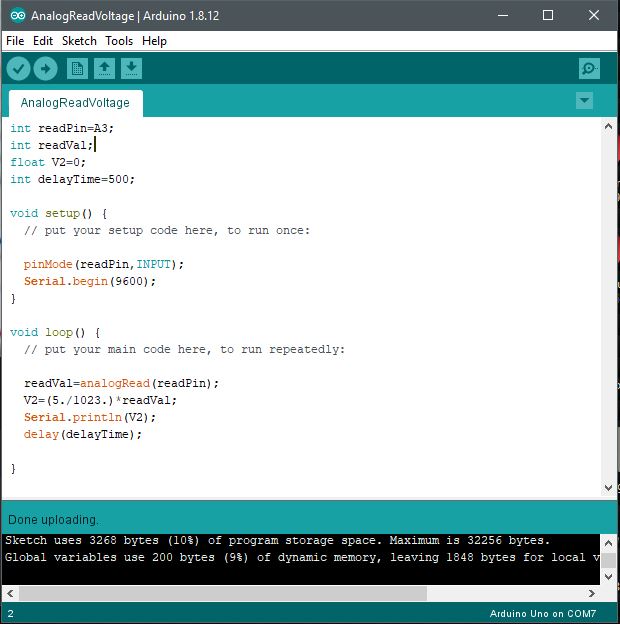
Code Implementation of Voltage Meter
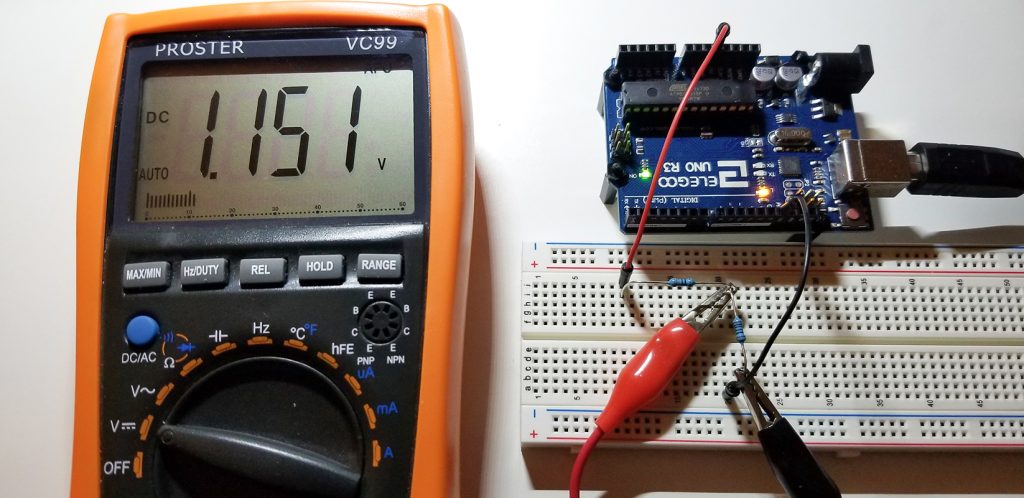
Selected Voltage Value for Arduino AnalogRead
Serial Monitor Value Reading from Arduino AnalogRead

Further Project Details: -Paul McWhorter
Continue Reading ·

Pulse Width Modulated (PWM) LED Illumination

To get a closer look at the analogWrite command supported by the Arduino platform, its internal pulse width modulation (PWM) function controls the duty cycle of an output voltage to drive an external circuit. More basically, you can assign argument values to the analogWrite command to affect a change in signal to an outside circuit. This is where the is a possibility of setting a discrete or continuously incremented or decremented values. Where a corresponding level is brightness intensity is observed.

int redPin=9;
int bright=127; // 0 = 0V 255 = 5VDC

void setup()
{
pinMode(redPin,OUTPUT);
}

void loop()
{
analogWrite(redPin,bright);
}

The output scale of 0 to 255 represents 256 unique values (28 = 256). Where 2 represents the two binary states 0 and 1 store in 8-bits of addressable data for registers to execute or process instructions in support 256 separate and unique values in RAM or ROM memory storage. In this case, the values selected along the scale between 0 to 255 provide increasing values of analog to digital conversion that eventually represent a full-scale value of an output voltage as a function of the available supply given to the controller.


Hardware Set Up:

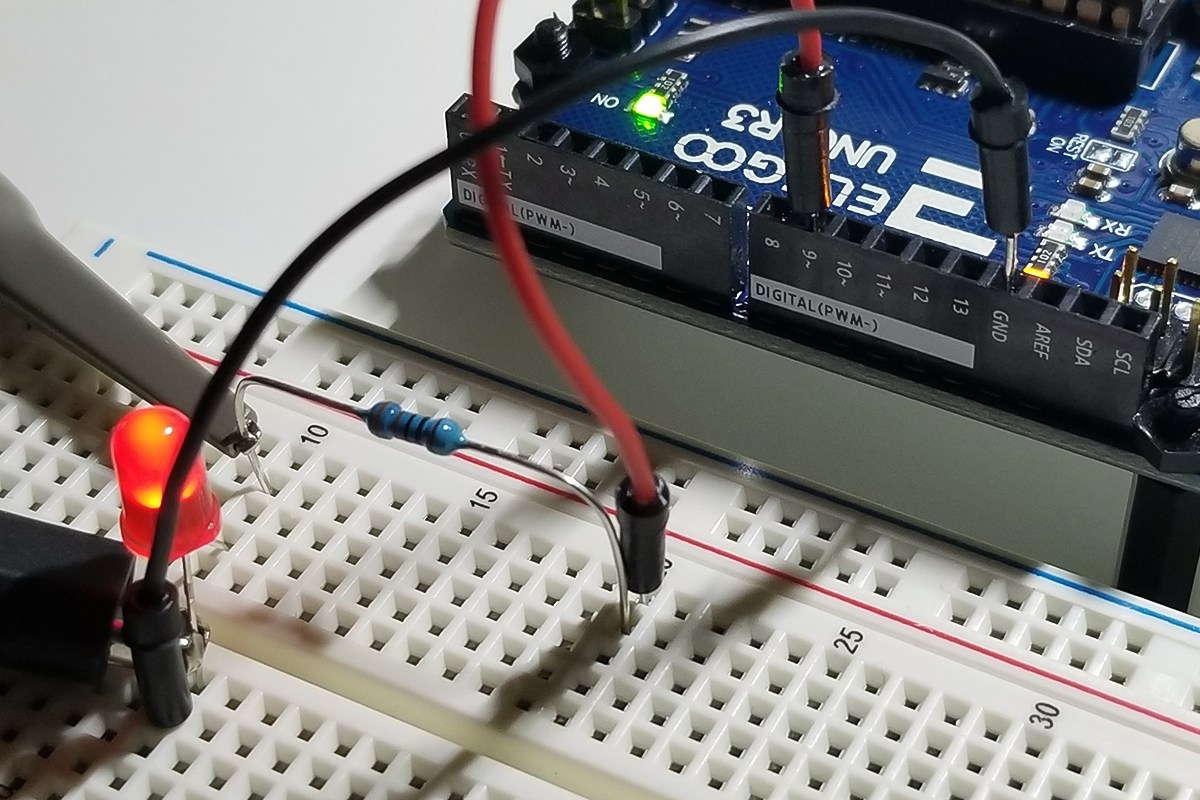
Notice that the pin identifiers at each suitable port with the ” ~ ” indicator supports PWM analog functionality. This is in contrast with the digitalWrite pins without the ” ~ ” symbol that does not support analog read/write operation. 

PWM Waveform Explanation:

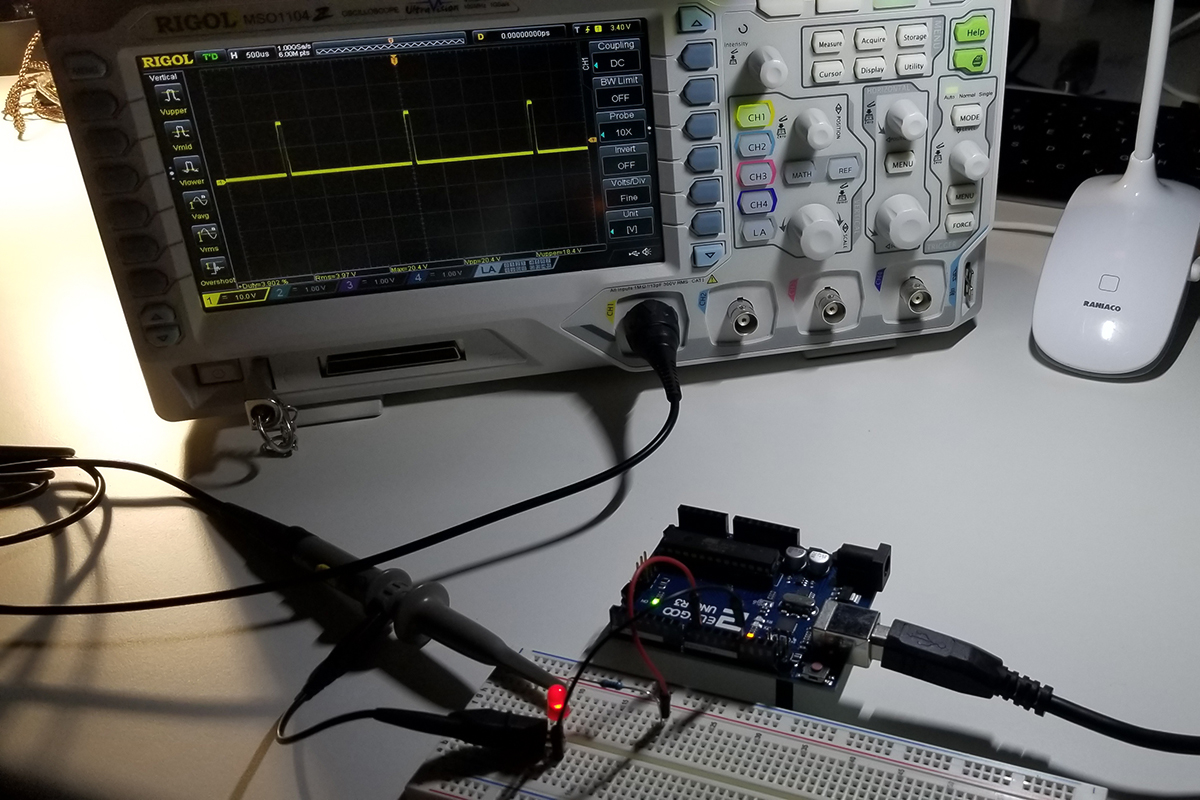
As depicted in this diagram, the waveform is at about a 50% duty cycle with an analogWrite argument value set to 127. Peak value is at 4.960V in the measurement as indicated by the cursor, but the illumination intensity is significantly lower than full brightness because the area under each pulse is reduced by about 50% or half. The cursor and statistics data in the screen capture gives the details about the change in behavior as compared to a 255 analogWrite argument value. In such a case, the waveform would appear as a straight line on an oscilloscope for 100% of available brightness. That is full available power presented to an output circuit, which in this case is an LED. 

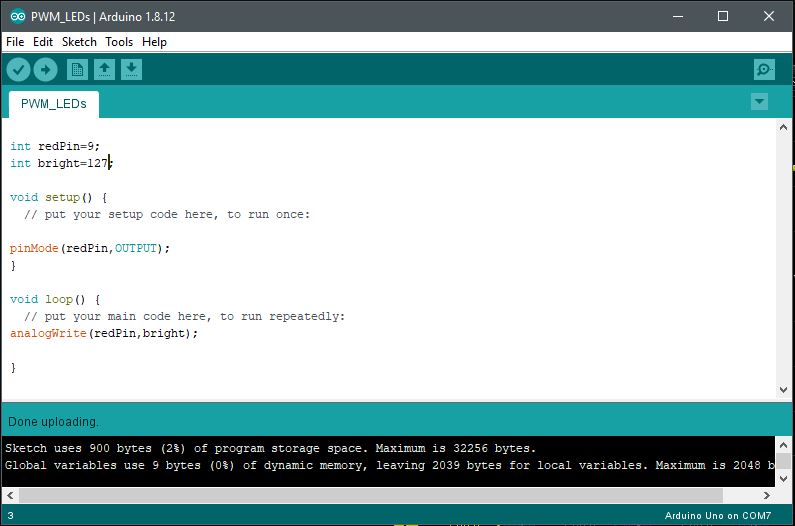
Arduino IDE:

The simple code set up within the Arduino Sketch IDE to show the details of the operation. 

Further Project Details: -Paul McWhorter
Continue Reading ·

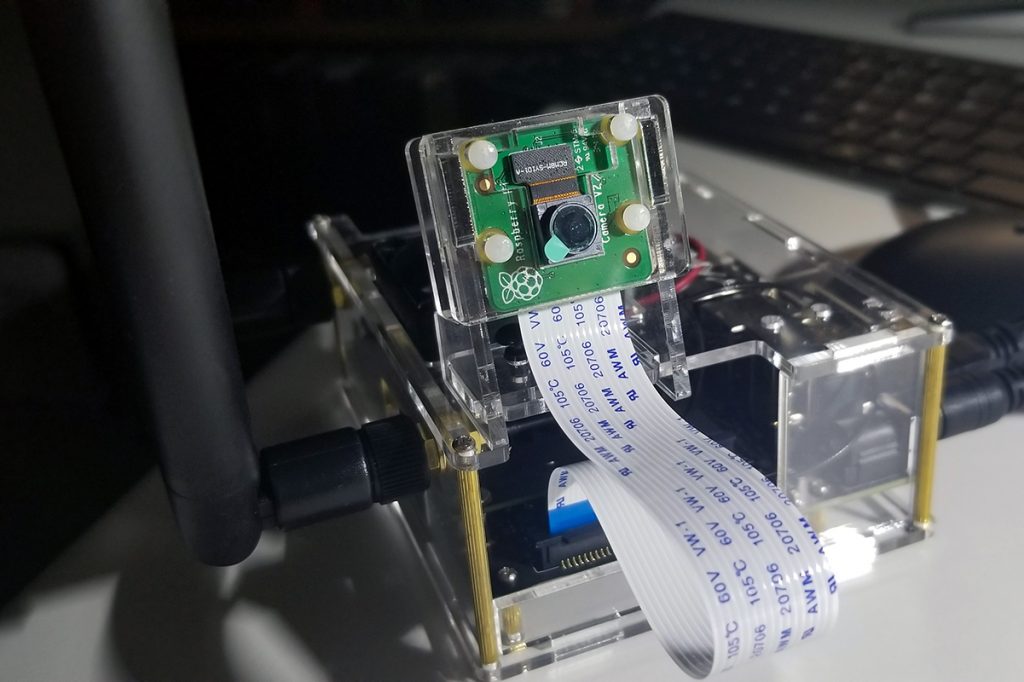
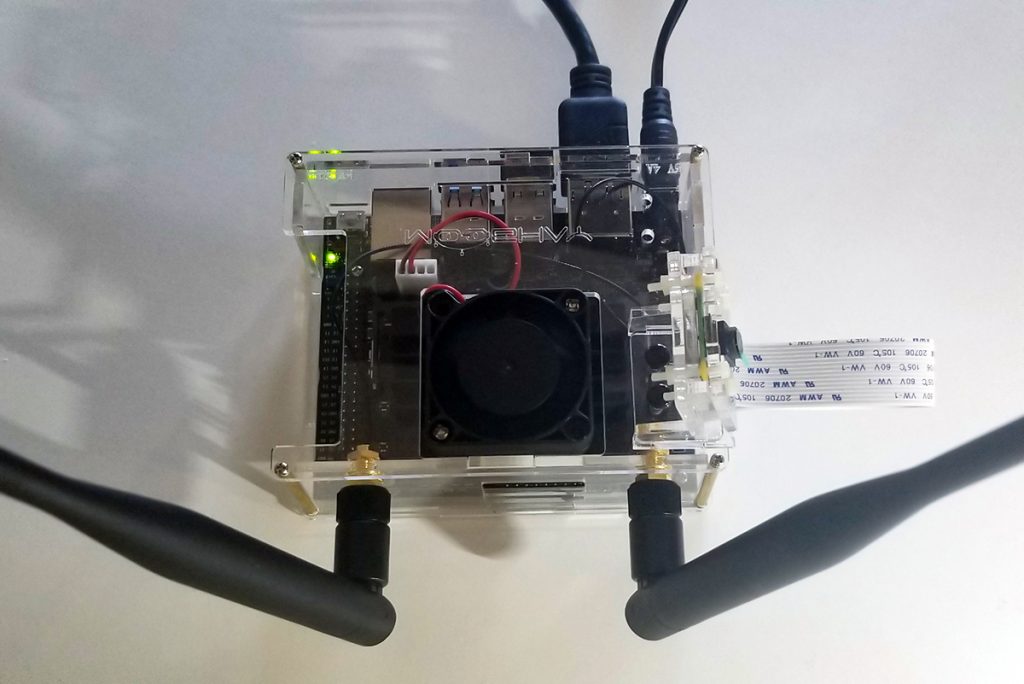
Artificial Intelligence on the Jetson Nano – Setup & Configuration

The Jetson Nano AI system set up was completed in preparation for various projects ahead. The process was very involved as it included the physical construction of the AI system hardware to also correspond to the associated Linux OS and GUI (Ubuntu). All configurations were completed such as the necessary Linux and Ubuntu applications. To set up the operating system with a new microSD card, 128GB is recommended for plenty of capacity. To format the microSD card, download the SD card utility from the sdcard.org site and install it to initialize the card. Once the card is formatted, download and install the operating system image from the NVidia Jetson nano developers website. To install the selected image, install and use the balenaEtcher utility. The image file from NVidia remains in its compressed format (zip file) as installed onto the microSD card. Once the MicroSD card is ready, insert it in the Jetson Nano and boot up the system.

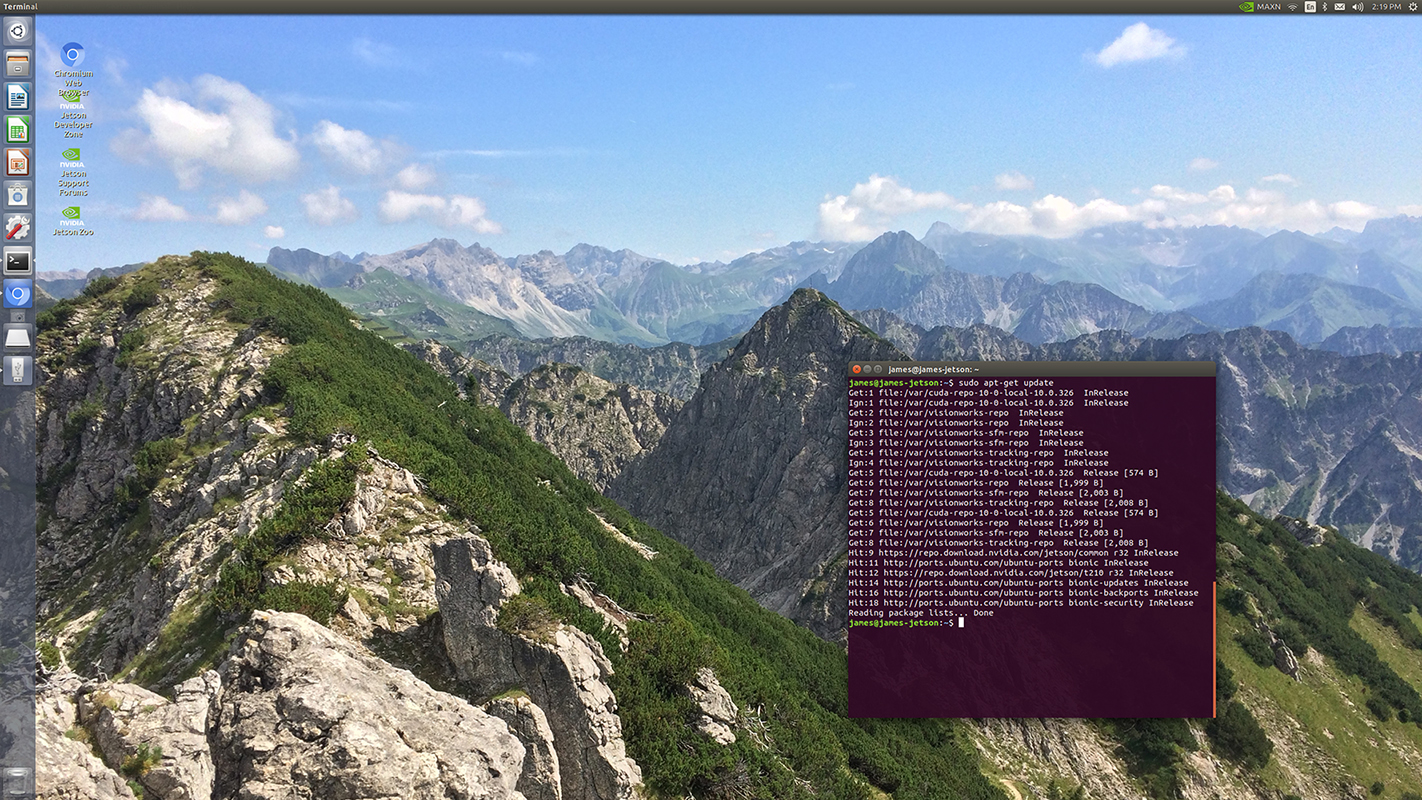
Once the system is up and running, open a terminal window to execute a sudo apt-get update to get the necessary Linux package updates. Thereafter, update the Ubuntu application itself as well.

It is certain that additional language setups are required as well such as Python and OpenCV.

There are numerous programs that will get written and made operational to involve object and facial detection, sensors, actuators, and so forth. In the days, weeks, and months coming various projects make use of this set up as a common platform of progress and advancement.

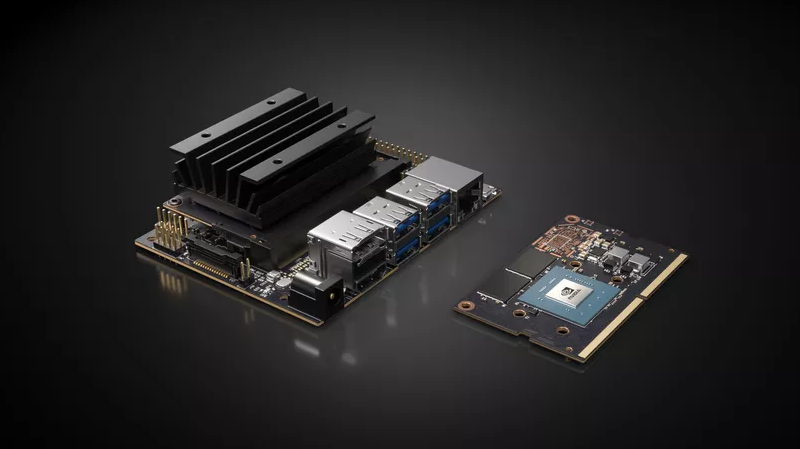
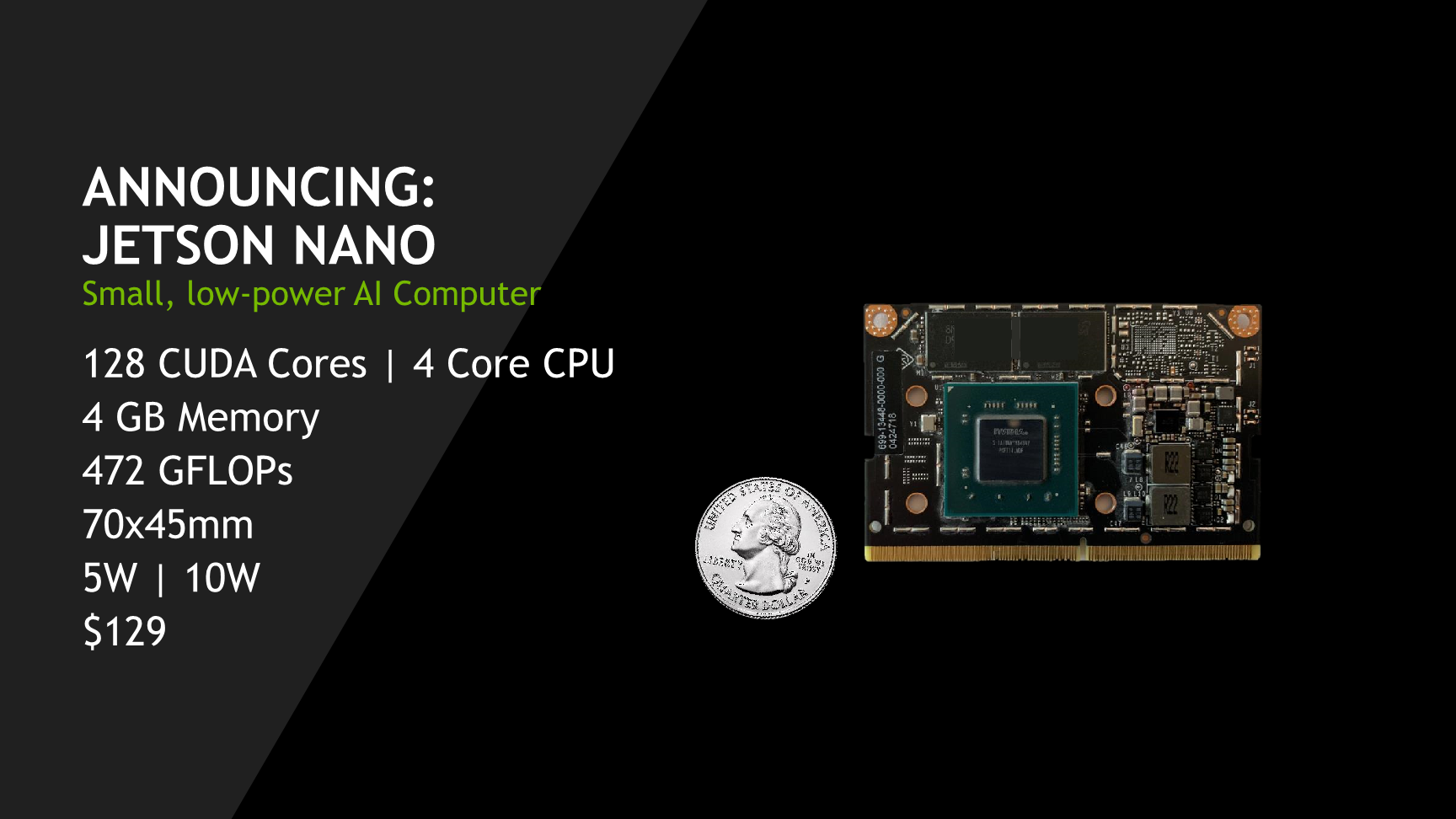
The Jetson Nano AI operating system originates from NVidia for developers to originate applications in deep learning and artificial intelligence. To that end, following posts after set up and configuration incrementally move towards grow and new discover.

Linux OS with Ubuntu Environment

Linux Operating System Ubuntu with NVIDIA GPU support. Superior graphical processing power necessary for camera sensor image capture, collection, and instruction handling.
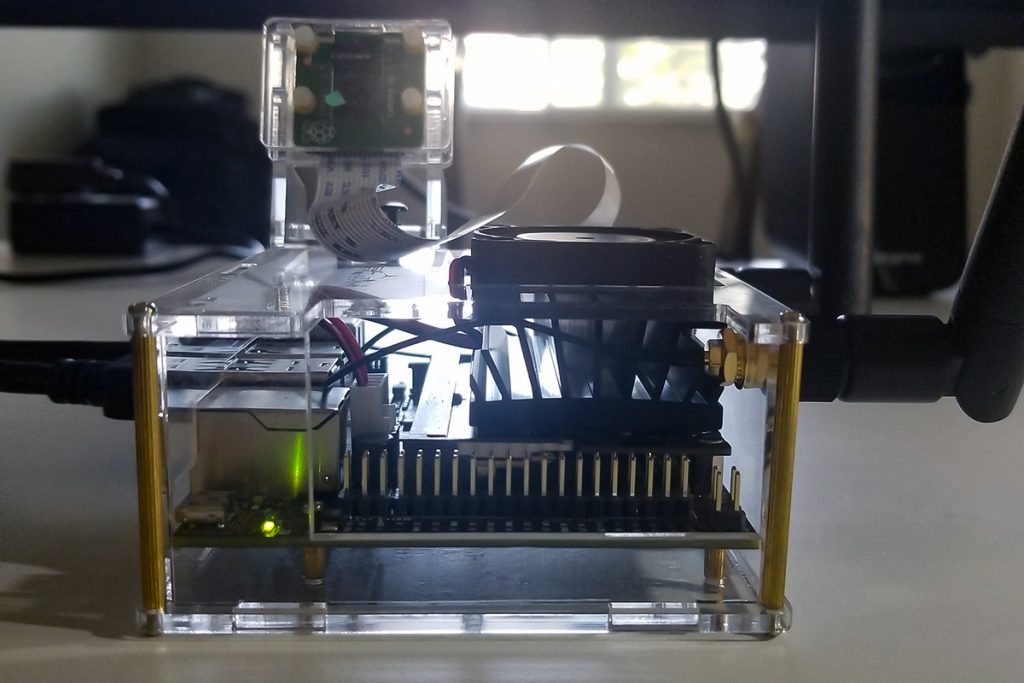
External Header for GPIO Port Interface Connectivity
Raspberry Pi Camera with Ribbon Cable Connectivity
WIFI Antennas (external / optional capability with expansion card), Cooling Fan, Clear Acrylic Case, and Connections. To include HDMI, 10W Power Receptacle (5VDC 4A wall adapter), RJ45, USB-A and USB-B Micro ports.
Continue Reading ·

LED Blink Illumination in Sequential Morse Code

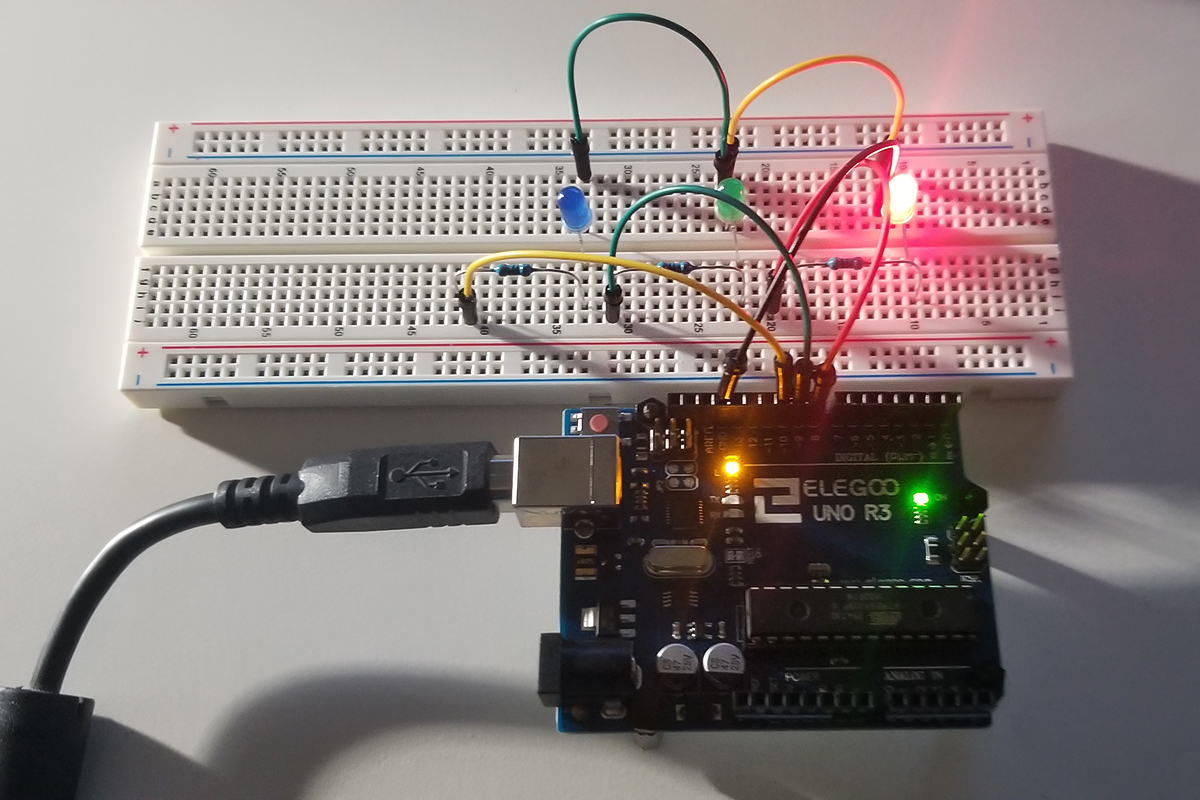
This project involves a simple circuit that involves three LEDs that illuminate in succession to indicate the presence of an SOS signal in Morse Code. The physical set up of the physical set up involves a red, green, and blue LED connected to three separate ports on an Arduino Uno. All share the same ground path and are current-limited by separate 330-ohm resistors. We have here a hardware set up of code to support a (dot, dot, dot, dash, dash, dash, dot, dot, dot) repeating pattern of illumination as a visual indication of messaging (••• – – – •••).

Each dot is a shorter on/off period of time as compared to a longer period for a sequence of three dashes. Following another three dots until the cycle repeats itself after a short delay.


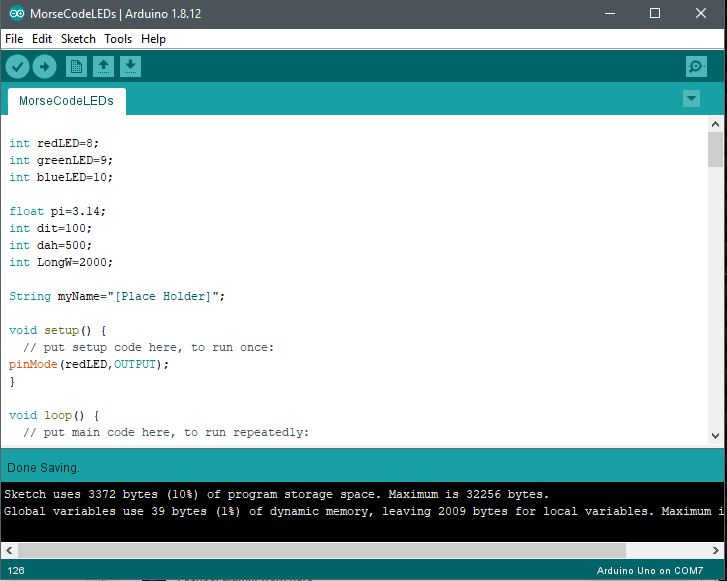
Arduino IDE:

Arduino Code:

int redLED=8;
int greenLED=9;
int blueLED=10;

float pi=3.14;
int dit=100;
int dah=500;
int LongW=2000;

String myName=”[Place Holder]”;

void setup() {
// put setup code here, to run once:
pinMode(redLED,OUTPUT);
}

void loop() {
// put main code here, to run repeatedly:

digitalWrite(redLED,HIGH);
delay(dit);
digitalWrite(redLED,LOW);
delay(dit);

digitalWrite(redLED,HIGH);
delay(dit);
digitalWrite(redLED,LOW);
delay(dit);

digitalWrite(redLED,HIGH);
delay(dit);
digitalWrite(redLED,LOW);
delay(dit);

digitalWrite(greenLED,HIGH);
delay(dit);
digitalWrite(greenLED,LOW);
delay(dit);

digitalWrite(greenLED,HIGH);
delay(dit);
digitalWrite(greenLED,LOW);
delay(dit);

digitalWrite(greenLED,HIGH);
delay(dit);
digitalWrite(greenLED,LOW);
delay(dit);

digitalWrite(blueLED,HIGH);
delay(dit);
digitalWrite(blueLED,LOW);
delay(dit);

digitalWrite(blueLED,HIGH);
delay(dit);
digitalWrite(blueLED,LOW);
delay(dit);

digitalWrite(blueLED,HIGH);
delay(dit);
digitalWrite(blueLED,LOW);
delay(dit);

digitalWrite(redLED,HIGH);
delay(dah);
digitalWrite(redLED,LOW);
delay(dah);

digitalWrite(redLED,HIGH);
delay(dah);
digitalWrite(redLED,LOW);
delay(dah);

digitalWrite(redLED,HIGH);
delay(dah);
digitalWrite(redLED,LOW);
delay(dah);

digitalWrite(greenLED,HIGH);
delay(dah);
digitalWrite(greenLED,LOW);
delay(dah);

digitalWrite(greenLED,HIGH);
delay(dah);
digitalWrite(greenLED,LOW);
delay(dah);

digitalWrite(greenLED,HIGH);
delay(dah);
digitalWrite(greenLED,LOW);
delay(dah);

digitalWrite(blueLED,HIGH);
delay(dah);
digitalWrite(blueLED,LOW);
delay(dah);

digitalWrite(blueLED,HIGH);
delay(dah);
digitalWrite(blueLED,LOW);
delay(dah);

digitalWrite(blueLED,HIGH);
delay(dah);
digitalWrite(blueLED,LOW);
delay(dah);

digitalWrite(redLED,HIGH);
delay(dit);
digitalWrite(redLED,LOW);
delay(dit);

digitalWrite(redLED,HIGH);
delay(dit);
digitalWrite(redLED,LOW);
delay(dit);

digitalWrite(redLED,HIGH);
delay(dit);
digitalWrite(redLED,LOW);
delay(dit);

digitalWrite(greenLED,HIGH);
delay(dit);
digitalWrite(greenLED,LOW);
delay(dit);

digitalWrite(greenLED,HIGH);
delay(dit);
digitalWrite(greenLED,LOW);
delay(dit);

digitalWrite(greenLED,HIGH);
delay(dit);
digitalWrite(greenLED,LOW);
delay(dit);

digitalWrite(blueLED,HIGH);
delay(dit);
digitalWrite(blueLED,LOW);
delay(dit);

digitalWrite(blueLED,HIGH);
delay(dit);
digitalWrite(blueLED,LOW);
delay(dit);

digitalWrite(blueLED,HIGH);
delay(dit);
digitalWrite(blueLED,LOW);
delay(dit);

delay(LongW);

}

Further Project Details: -Paul McWhorter

Continue Reading ·

Project March

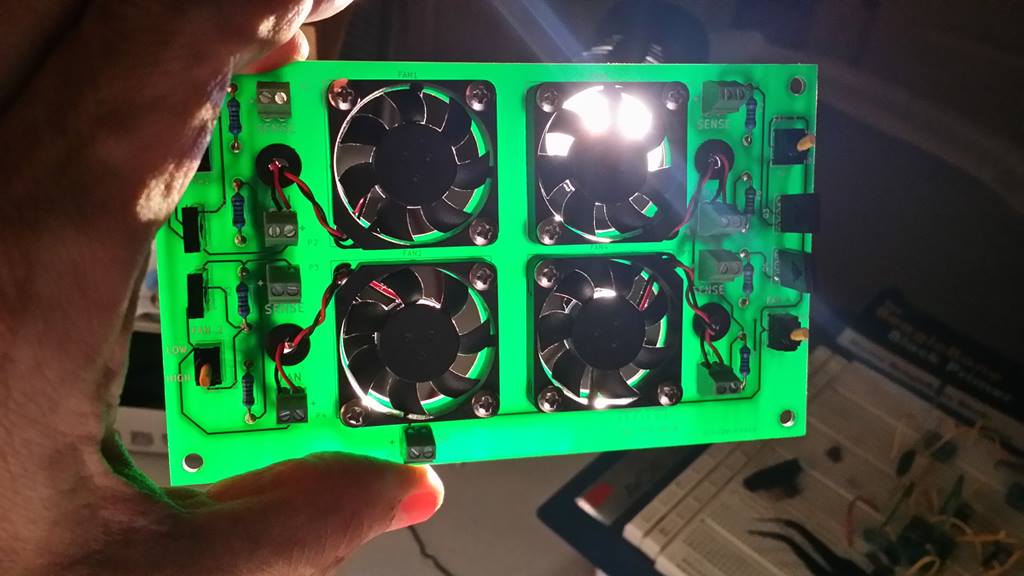
The micro-fan project is done. The march to another one continues. Once templates are set among various project elements such as BOMs, CAD files, libraries, account settings, etc., the rest comes easier project after project.


Continue Reading ·

Stackable Modularity & Support of SBC Functions

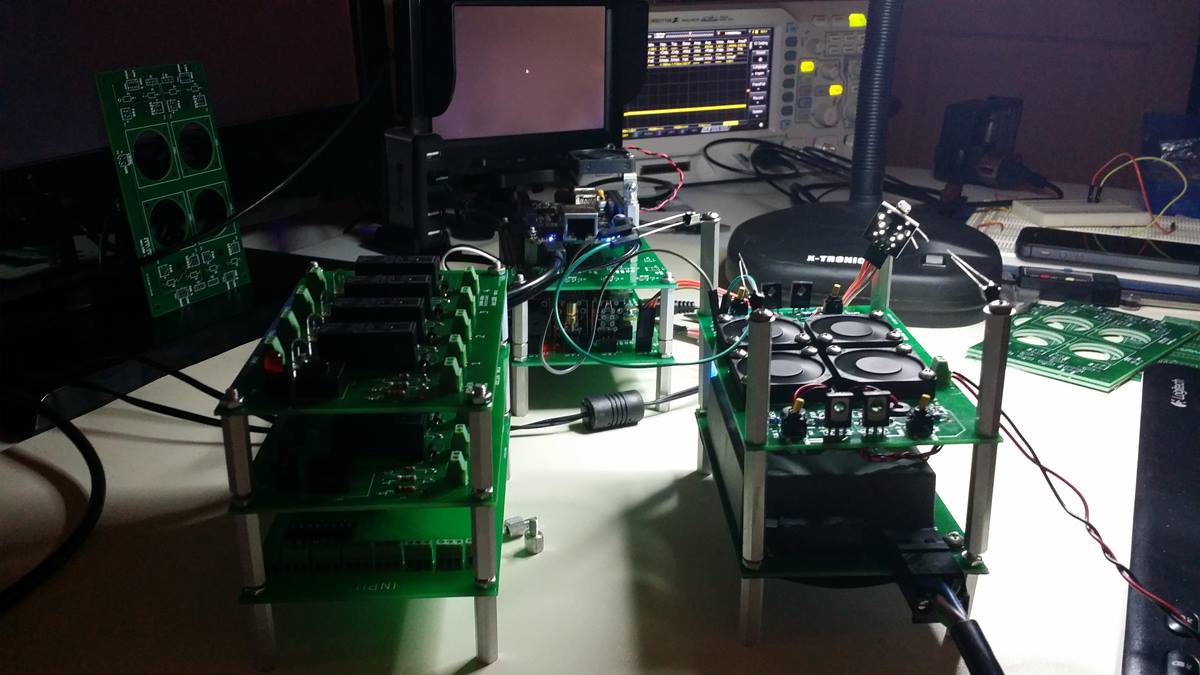
This is the thermal management module stacked upon other free-standing modules. Each module that operates on its own, or together in an integrated fashion. With a small SBC based micro tower computer built from scratch (RPi), power, cooling, processing, sensor adaptation, and load control all integrated together perform functions in a stackable format.

These modules are interchangeable in terms of position and somewhat by function. There is a functional modularity that extends to other modules built together or separated to deliver isolated capabilities unique to various use-cases. Namely, cooling functionality, power support, and programmability with sensor integration. Other functions associated with common SBCs with GPIO ports include relays, actuators, sensors, drivers, routers, etc.


Continue Reading ·

Harmonic Difficulties With High-Speed Clock

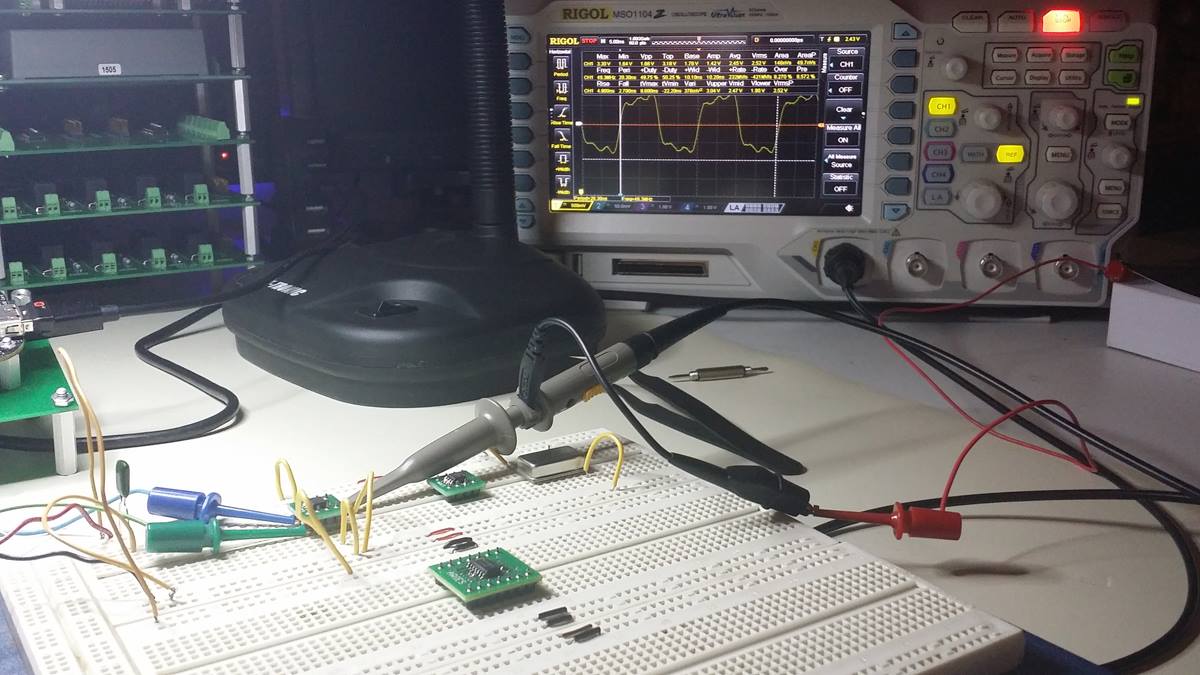
Here I am chasing harmonics to drain them to ground. Literally. This is what I spent time doing today. Set up a draft schematic by happenstance with a strong drink, sunglasses, and music too loud.

See that square wave on the scope? That’s exactly what’s supposed to happen given by the drawing. Only, the waveform is somewhat messy. Too many long leads, unstable harmonics, spurious noises, and other monkey business artifacts going on.

On one hand, it is completely unclear what the specific contributing causes are. Yet, on the other hand, it’s perfectly clear what likely needs the most attention in terms of clean up and the use of the specified reference design’s filters. I can see what’s on the other side before the trial concept is finished.

Continue Reading ·

Voltage Controlled Oscillator Correction & Substitution

Well. It turns out that I ordered an XO crystal and not a VCXO crystal to build the design and prototype of the timing module. So retreated and went for both SMD and PTH to get things going. Probably play it safe with PTH (plated through-hole) to get things back on track.

Sort of a big deal and I’ll have to put my attention on the 556 one-shot and 1-second centered pulse with variability. It will probably take a week to get the VCXO. If I expect to have a continuous pulse supply from a single rail voltage, I must use a VCXO.

Continue Reading ·