Archive | Arduino RSS feed for this section

Smoke Detector with Alarm and LED Indicators

While the MQ-2 gas sensor is one among a range of gas sensor types, it is roughly suitable for coarse experimentation for substances other than smoke. This sensor is sensitive to smoke and Liquid Petroleum Gas (LPG), Butane, Propane, Methane, Alcohol, and Hydrogen, but this project is set up for smoke detection to further explore its functionality, capabilities, and limitations.
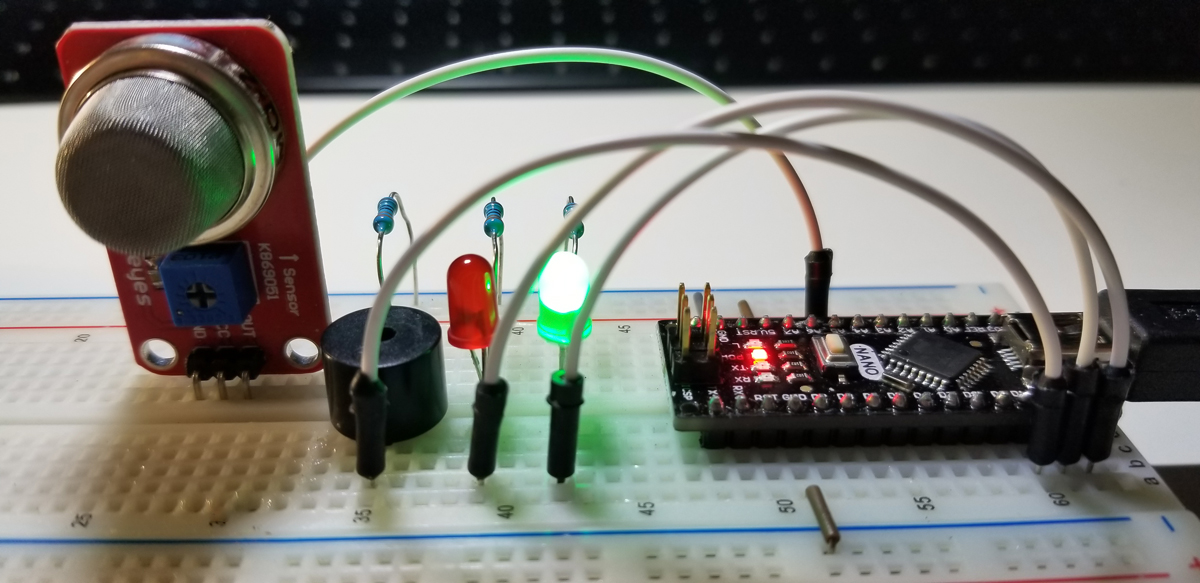
The project includes a sensor to detect smoke as an input source that senses the presence of flammable gases or the origination of smoke and smoke itself in its immediate environment. The circuit is assembled to also include a buzzer alarm and two LEDs to indicate status (red for alarm and green for normal). While the sensor sits in its free space, it detects normal levels of air as a comparison to any gases or smoke that might be mixed in. That normal level is a threshold set with a sensitivity setting on the sensor itself (a small trim potentiometer).
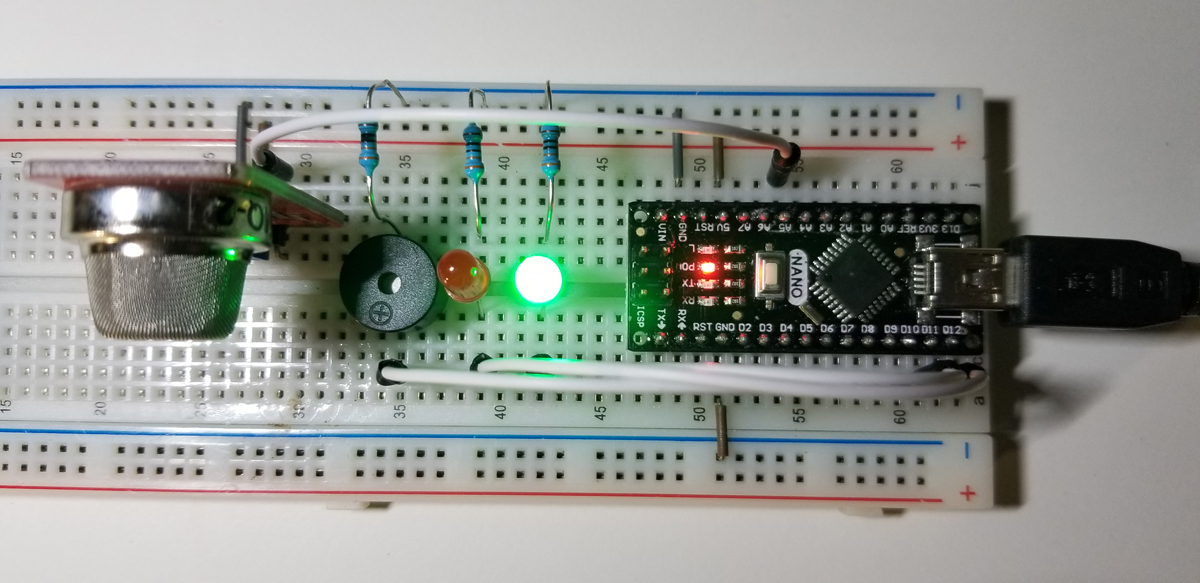
The alarm and status LED changes are triggered from a threshold set within code according to the sensitivity setting trimmed as a configuration at the sensor. The range of high or low sensitivity is limited to the specifications of the sensor.

Project Schematic:

Assembly of this project is a simple effort to connect all relevant components. Three 330-ohm resistors, 1 active buzzer, 1 green LED, 1 red LED, 1 MQ-2 gas sensor, and an Arduino Nano with a USB-Mini connection to a computer for programming support. The Arduino Nano also provides power for the circuit as a whole while it is in operation.
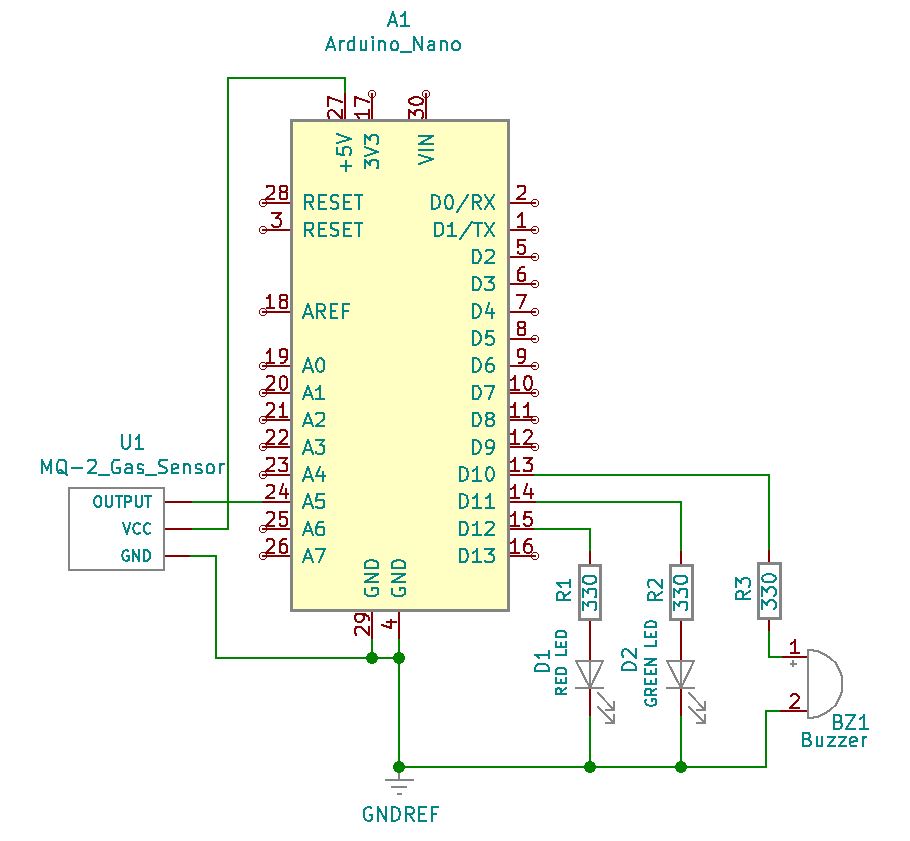
Smoke Detector Circuit using the MQ-2 Gas Sensor.

Project Review:

An incense stick was safely lit to produce the smoke necessary to run this test. As smoke is presented to the sensor from the incense stick, the detector sets off the alarm and illuminates the LED as expected. When the smoke is removed from the sensor’s proximity, the system automatically returns to normal as expected.


Code Example:

While this code is for generic evaluation use, it is further expected to calibrate the detector’s sensor by first setting it into free air within its environment and establish a low/high condition with respect to ambient humidity and temperature. As a range, the threshold level set within code and trimmed on the sensor should take into account normal air conditions excluding the presence of smoke. The calibration level within a +/- range is not set within this project, but it is important to take these conditions into account for more precise applications. This project is simply for rough experimentation with a default threshold value trimmed with a wide latitude for variability in air quality or conditions.

//For MQ-2 Gas Sensor

int redLed = 12;
int greenLed = 11;
int buzzer = 10;
int smoke = A5;

/* Set threshold value then trim sensor value (read from Serial Monitor) at a % below to account for the range of variation in humidity and temperature. */

int sensorThreshold = 400;

void setup()
{
pinMode(redLed, OUTPUT);
pinMode(greenLed, OUTPUT);
pinMode(buzzer, OUTPUT);
pinMode(smoke, INPUT);
Serial.begin(9600);
}

void loop()
{
int analogSensor = analogRead(smoke);

Serial.print(“Sensor Reading: “);
Serial.println(analogSensor);
// Checks if it has reached the threshold value
if (analogSensor > sensorThreshold)
{
digitalWrite(redLed, HIGH);
digitalWrite(greenLed, LOW);
tone(buzzer, 1000, 200);
}
else
{
digitalWrite(redLed, LOW);
digitalWrite(greenLed, HIGH);
noTone(buzzer);
}
delay(100);
}
Continue Reading ·

Flame Detection with Sound Alert & Warning Light

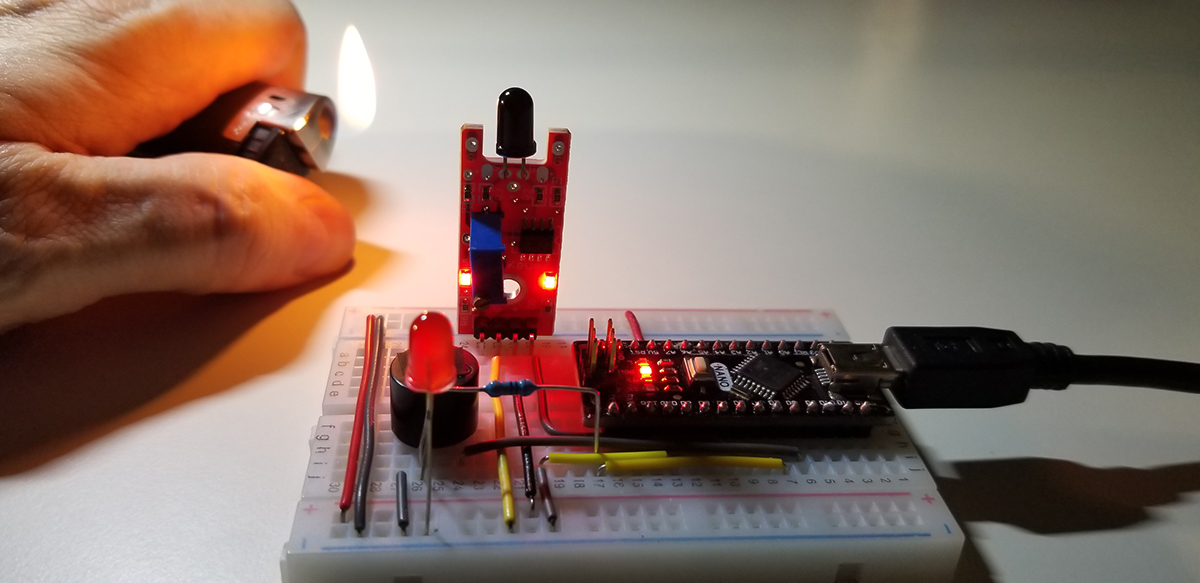
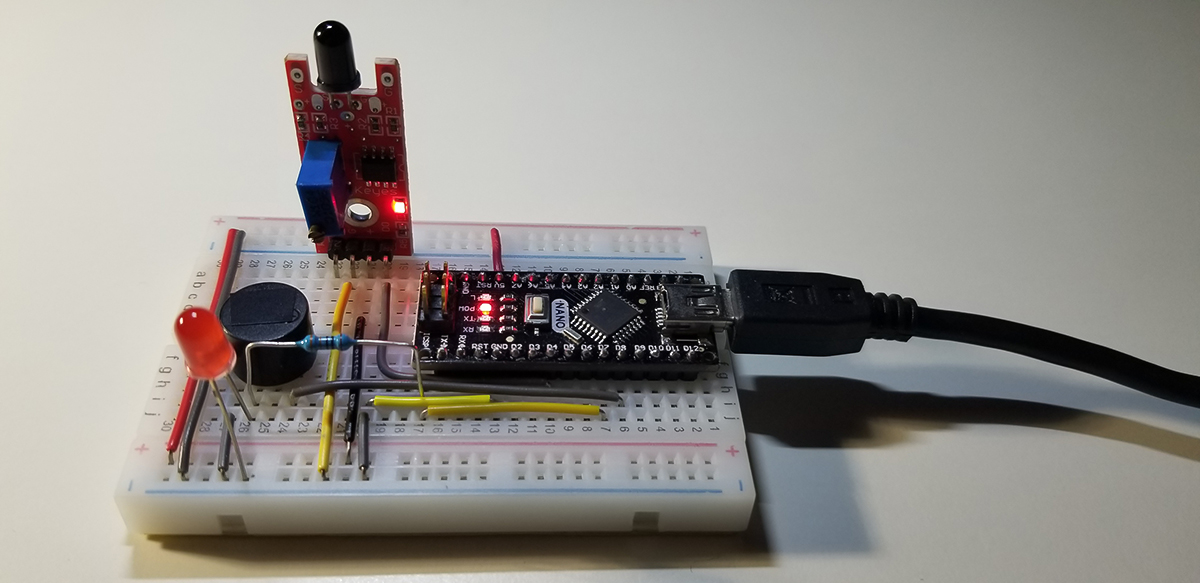
An Arduino Nano is set up in this project to run a flame detection sensor as a small fire alarm system. The system uses a small active buzzer (muted) and an LED to both simulate an alarm condition with the presence of fire in proximity to the flame detector. The Nano was chosen in this project to support any desire for portability or placement into a container that has an internal and temporary battery back up.

The buzzer and LED are visual and audible indicators to simulate an event trigger such as a relay closure to suppress a fire, or shut off a fuel pump. The sensor assembly itself consists of an infrared receiver (IR photodiode), an LM393 op-amp, an SMD power LED, an SMD fire presence LED, a 100k-ohm trim pot, and various resistors for the LED and to compose the op-amp circuit. The trim pot provides and adjustment setting for flame sensitivity at nearby or farther distances.

When the flame sensor detects the presence of fire, its D0 pin produces a logic HIGH output voltage that in turn is read into the Arduino GPIO input pin (pin D4). If there is no flame within proximity of the sensor, the detector returns its D0 output pin to an active LOW state. Where again the Arduino reads that change as an input and interprets the condition for a different event (alarm off, light off, event trigger(s) back to normal).

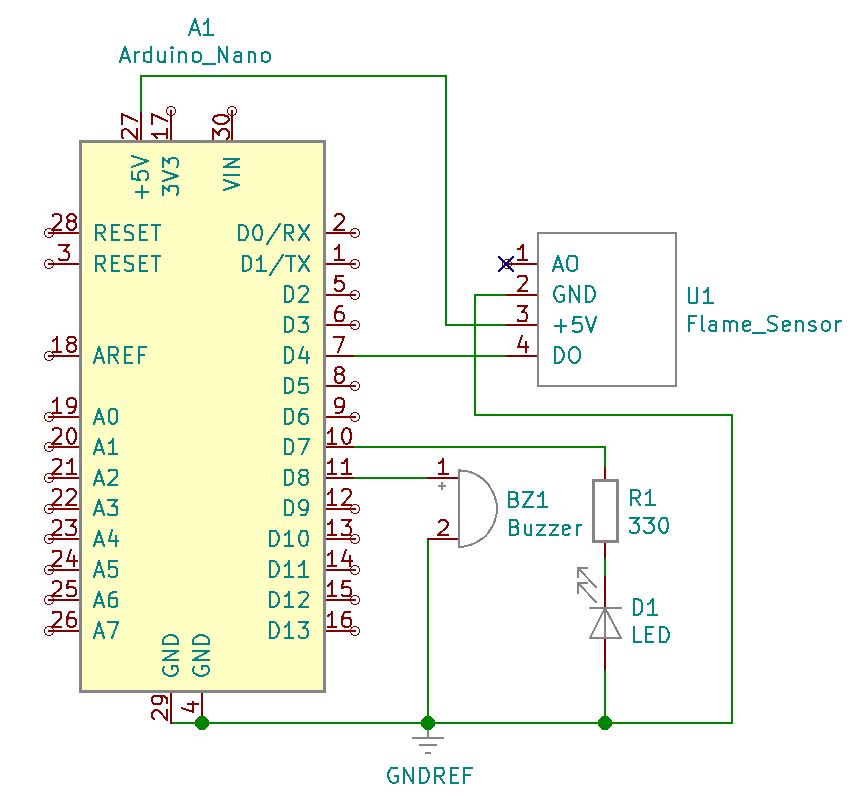
Project Schematic:

In addition to various jumpers, the project requires a small collection of common and readily available components. Their connections illustrated in this schematic diagram how to connect the various components together using jumper wires. The Arduino unit itself requires its own USB plug to give it and surrounding circuit components power. The same USB connection serves as the programming port to upload the code written to operate the system.

Schematic diagram of Flame Detection circuit.

Project Review:

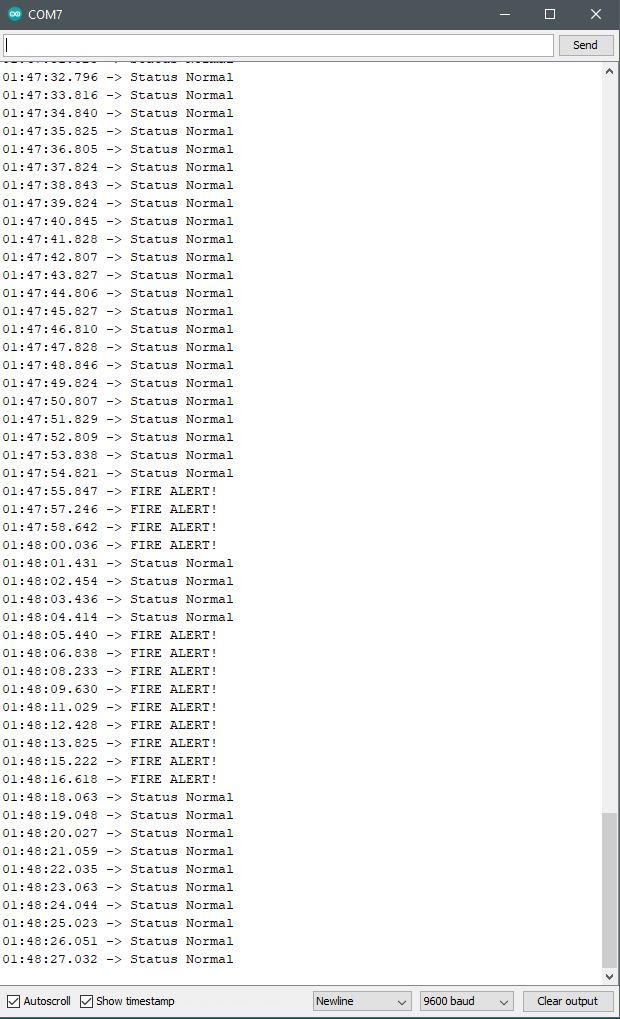
This short video provides a physical demonstration of how the flame detector operates. As a flame is put in nearby proximity of the sensor, it triggers a computer message, “FIRE ALERT” and it sounds off a buzzer alarm and illuminates a blinking light. The flame is moved shorter and longer distances away from the detector to visibly and audibly recognize the system’s detection threshold.


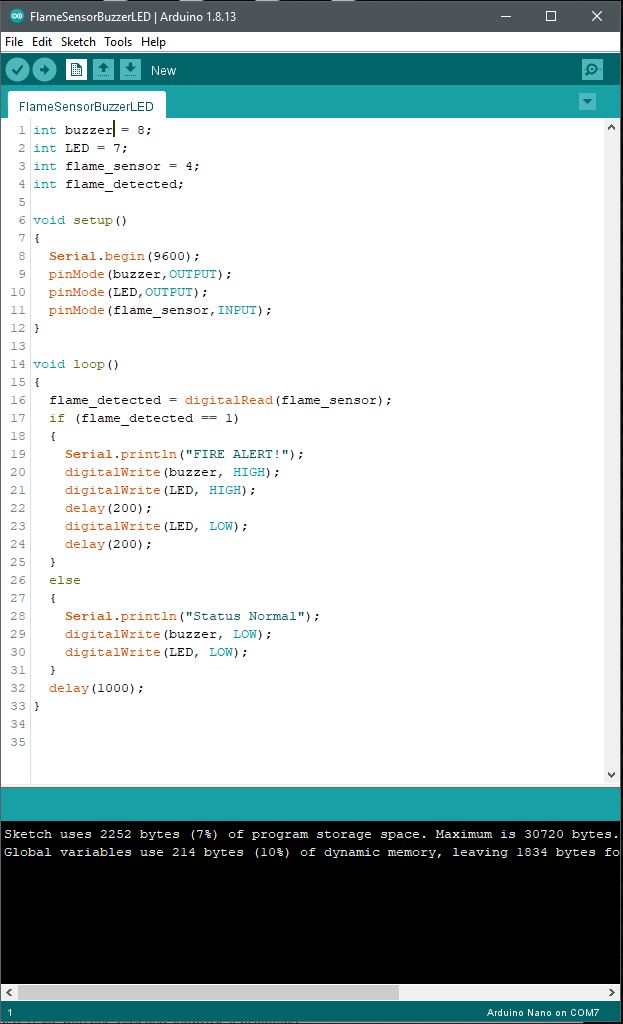
Arduino IDE:

Code Example:

int buzzer = 8;
int LED = 7;
int flame_sensor = 4;
int flame_detected;

void setup()
{
Serial.begin(9600);
pinMode(buzzer,OUTPUT);
pinMode(LED,OUTPUT);
pinMode(flame_sensor,INPUT);
}
void loop()
{
flame_detected = digitalRead(flame_sensor);
if (flame_detected == 1)
{
Serial.println(“FIRE ALERT!”);
digitalWrite(buzzer, HIGH);
digitalWrite(LED, HIGH);
delay(200);
digitalWrite(LED, LOW);
delay(200);
}
else
{
Serial.println(“Status Normal”);
digitalWrite(buzzer, LOW);
digitalWrite(LED, LOW);
}
delay(1000);
}


Continue Reading ·

Arduino Clone Bootloader Setup & Programming

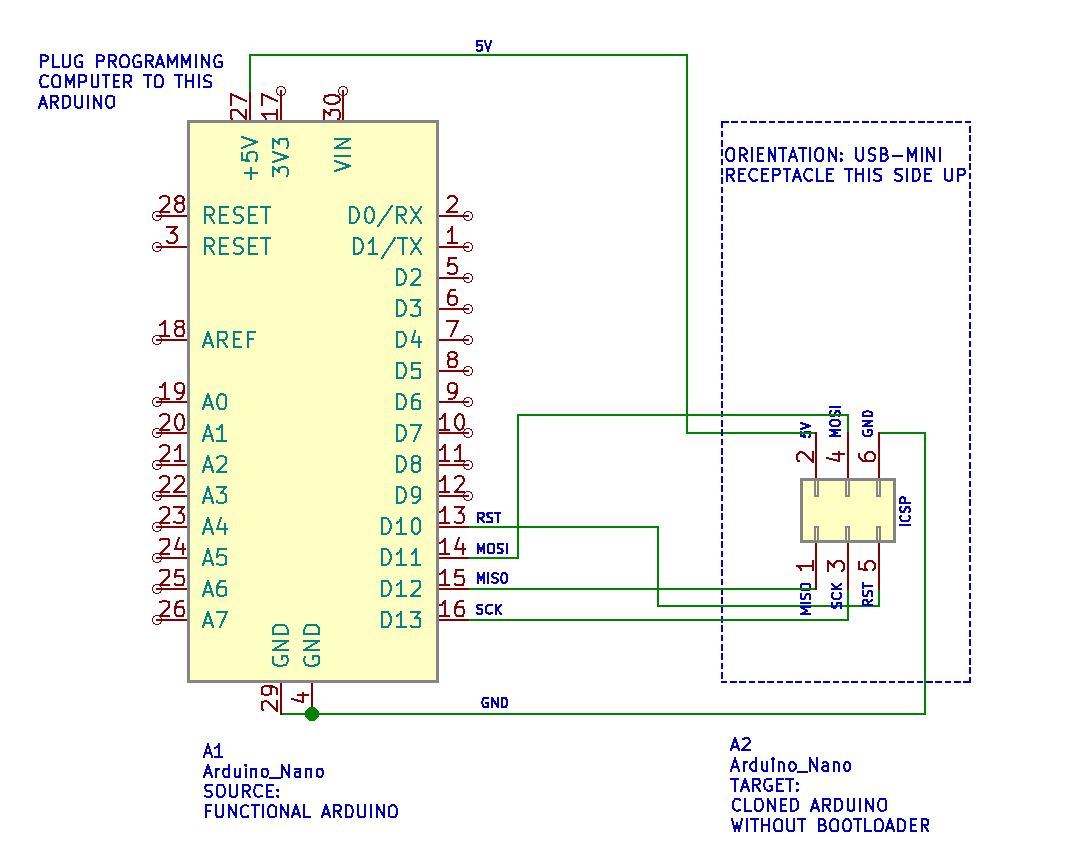
Arduino modules (in this case an Arduino Nano 3.0) may come from China without the hardware initialized with a suitable bootloader. Necessary for project work and programming, a bootloader configuration is necessary for an Arduino to connect to a local host computer and its Arduino Sketch IDE. To install a bootloader into the clone Arduino, it is necessary to connect it to a known functional Arduino unit (in this example another Nano) and configure the functional Arduino to set up and configure the bootloader code for the target Arduino clone.

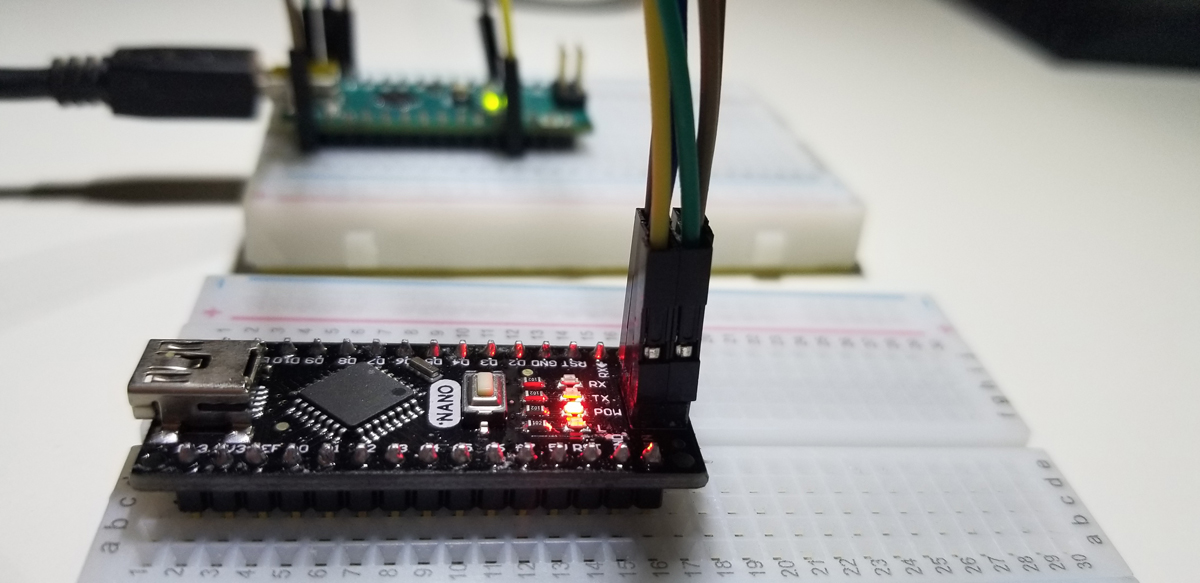
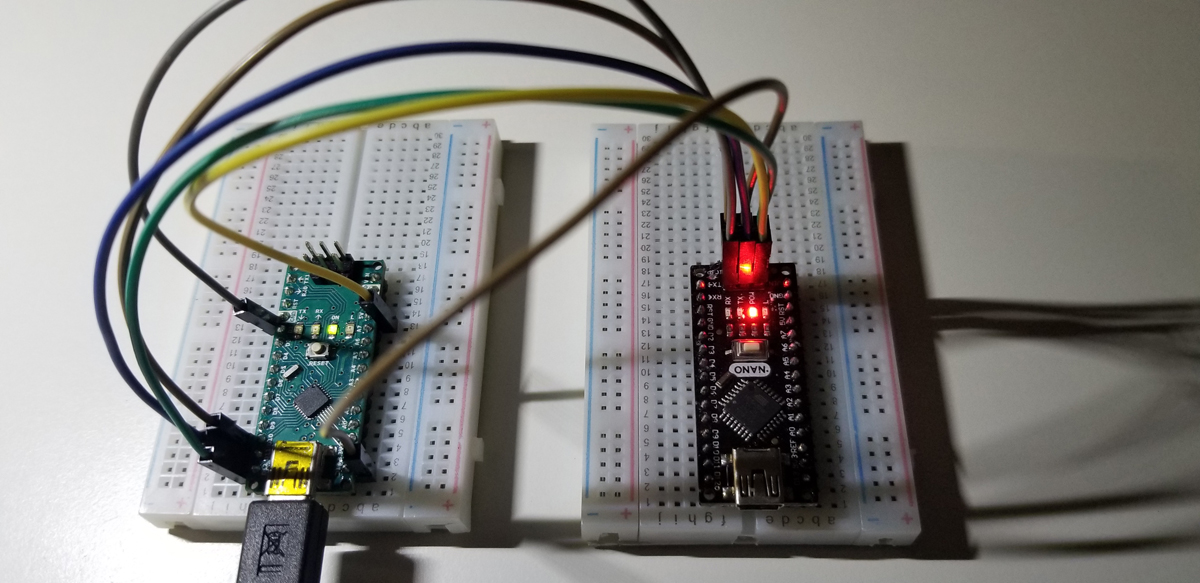
Side by side are the source and target Arduino units to set up and configure the bootloader at the target device (the black Arduino Nano).

Once the bootloader set up and programming is successful, the clone Arduino is prepared for standard project work and programming as desired.

A host computer connects to the source Arduino Nano via USB-Mini male to USB-A male. From there, the source Arduino Nano serves as a host for the target Arduino clone. Bootloader code that resides in the source is transferred to the clone with the connections made and the burn utility within the Arduino IDE.

Programming Method

Step 1 | Configure IDE and Load Arduino ISP

  1. Connect functional Arduino to the USB port on your computer. A USB-Mini male to USB-A male cable is necessary to make this connection. No USB connection is made to the clone Arduino.
  2. Open the Arduino IDE software.
  3. Select the correct COM port available from the Arduino menu (Tools > Port > Serial ports). Choose one COM port such as COM1, COM3, COM5, etc.
  4. Select the correct Arduino board from the Boards Manager menu option (Tools > Board: Arduino Nano (in this example).
  5. Open Arduino ISP to functional Arduino connected to the host computer via USB mini (Nano) to USB-A (computer). To open the Arduino ISP file select the correct example file (File > Examples > Arduino ISP). Once selected, the Arduino ISP code should open within the Arduino IDE as a Sketch.
  6. Upload the Arduino ISP code to the functional Arduino (Nano in this case).
  7. Unplug the functional Arduino USB cable and complete the six connections to the clone Arduino as described in step 2 below.

If the Arduino ISP code is needed separately (step 5 above), see the download button/link below.

Step 2 | Connect Arduinos

  1. Connect pin 1 on Arduino clone to D12 of functional Arduino.
  2. Connect pin 2 on Arduino clone to 5V of functional Arduino.
  3. Connect pin 3 on Arduino clone to D13 of functional Arduino.
  4. Connect pin 4 on Arduino clone to D11 of functional Arduino.
  5. Connect pin 5 on Arduino clone to D10 of functional Arduino.
  6. Connect pin 6 on Arduino clone to GND of functional Arduino.

Wiring Schematic

This diagram illustrates how to connect both a functional and clone Arduino together for bootloader programming to the clone. Important: connections D10 – D13 (digital pins 10-13 of the functional Arduino) are the connections to the clone Arduino. For example, do not connect reset or RST of the functional Arduino to the RST of the clone Arduino. Instead, connect D10 of the functional Arduino to pin 5 of the clone Arduino.

Schematic diagram of source and target Arduino units for bootloader upload to a clone Arduino.

Proceed to step 3 below once all connections are made as described in step 2 above, or as illustrated in the wiring schematic above.

Step 3 | Code Load Bootloader

  1. Connect the USB cable to the functional Arduino again for power and programming. This is the same connection made earlier when the Arduino ISP was uploaded to the Arduino unit.
  2. Confirm the correct COM port is selected (Tools > Port > Serial ports). Choose one COM port such as COM1, COM3, COM5, etc.
  3. Select the correct Arduino board from the Boards Manager menu option (Tools > Board: “Arduino Nano” (in this example)).
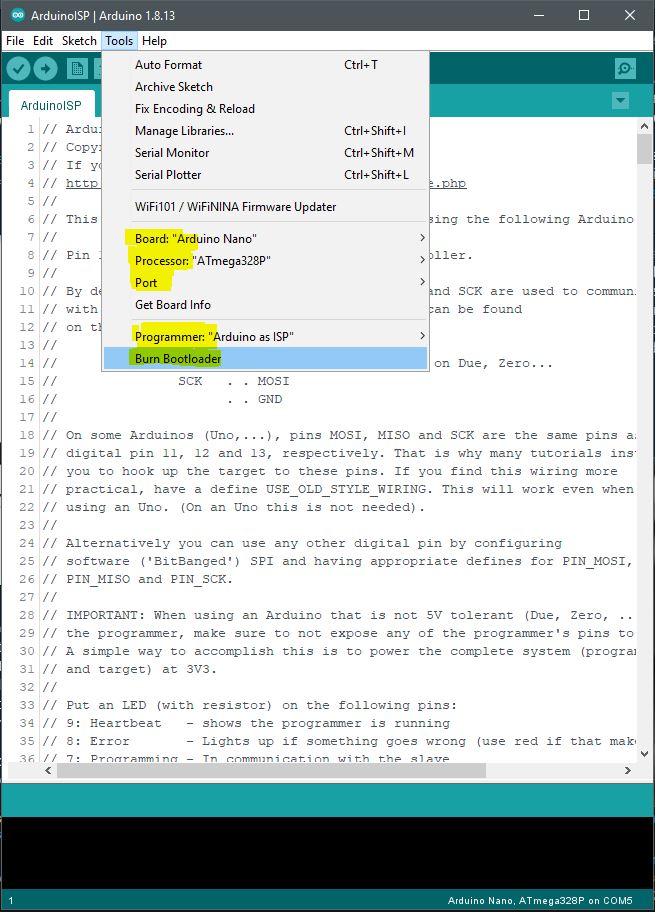
  4. Select the correct processor from the menu (Tools > Processor > ATmega328P).
  5. Select the correct Arduino programmer from the menu (Tools > Programmer: “Arduino as ISP”)
  6. Select from the Arduino menu the bootloader utility (Tools > Burn Bootloader) to program the target clone Arduino with the bootloader file. Confirm from the Arduino IDE that the upload is completed (observe the “Done” message at the lower IDE window pane). The LEDs on both Arduino units flash during the bootloader programming and stop once the process is done.
Arduino Sketch IDE menu tools for bootloader setup and transfer.

Hardware Demonstration of Bootloader Transfer

This brief video demonstrates the LED activity before, during, and after the bootloader programming. The Arduino Nano on the left is the source and the Arduino Nano clone on the right is the target.


Continue Reading ·

DC Motor with Variable Speed Control by Joystick

This project makes use of a thumb joystick to control the direction of shaft rotation on a DC motor. The joystick also controls the rotational speed of the motor shaft by how far it is moved horizontally (y-axis). With the joystick on center and at rest, the DC motor doesn’t rotate. However, gradually moving the joystick horizontally to the right increases the speed of the motor until a maximum value permitted by a L293 motor controller. The same method of variable speed control is achieved in reverse with its negative limit to available speed in the opposite rotational direction.

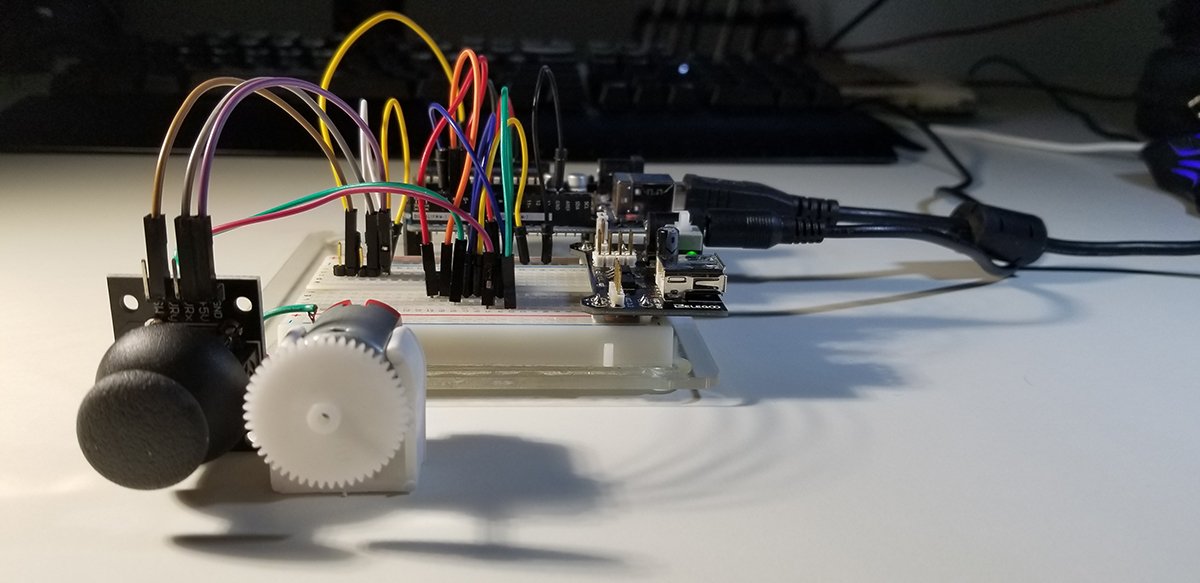
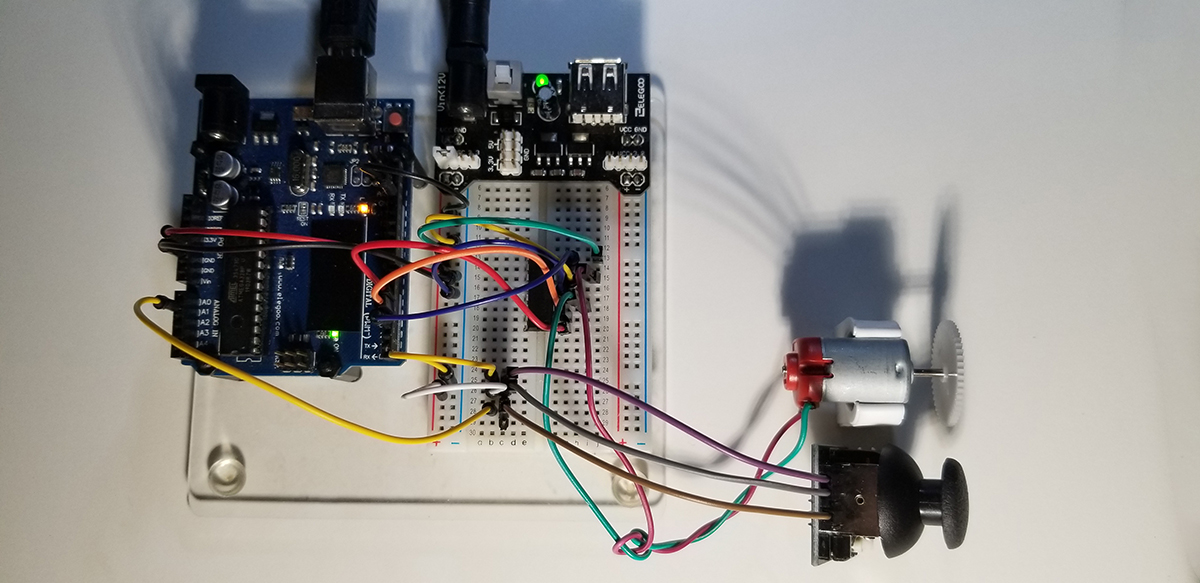
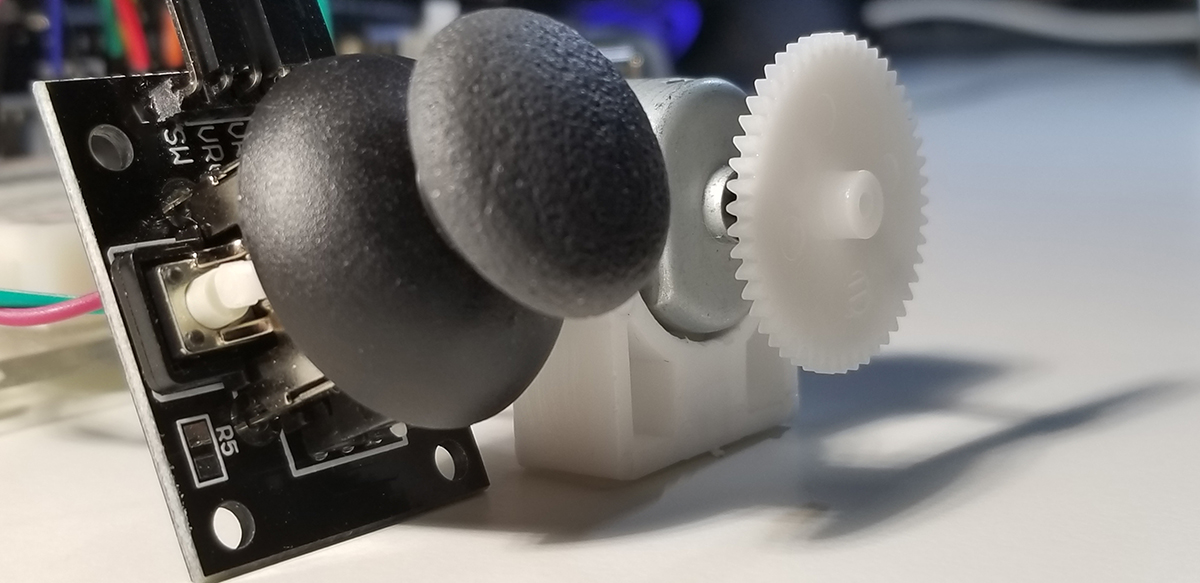
Joystick, DC Motor and motor controller with Arduino Uno R3.

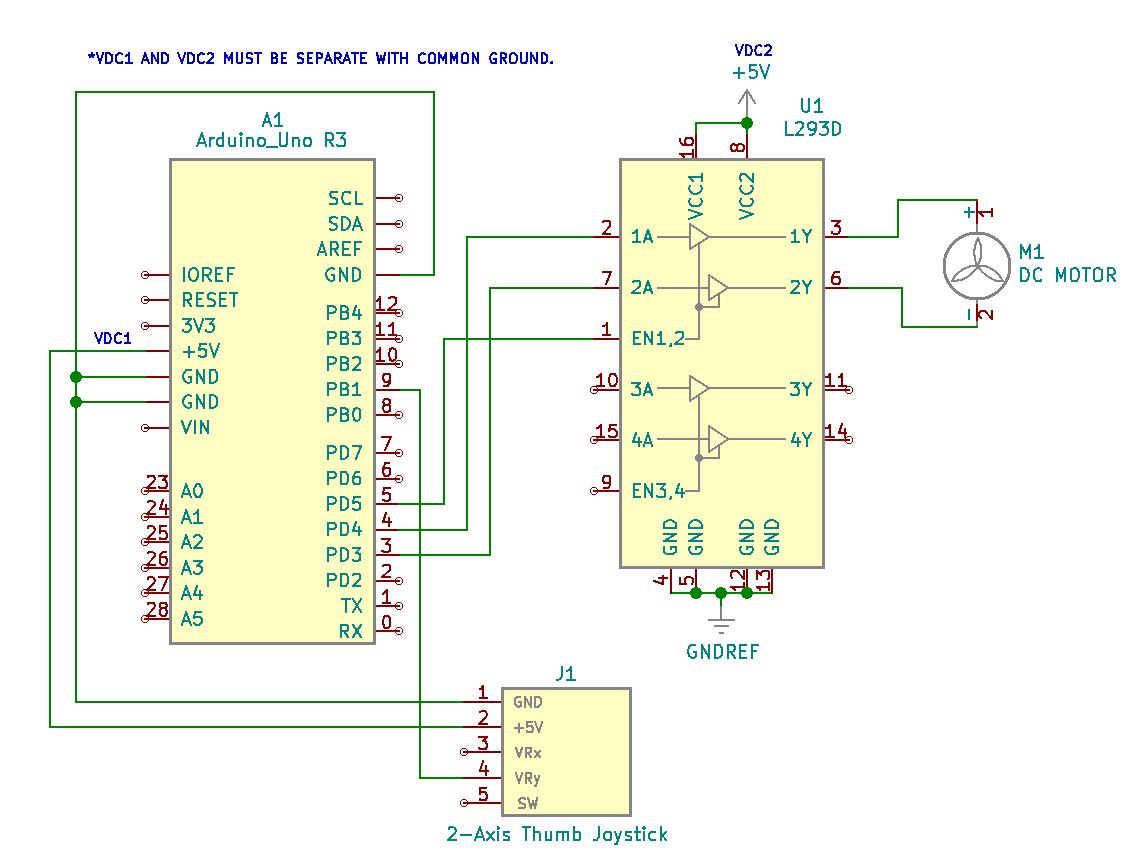
Further details that correspond to this photo are given in the schematic diagram below. The schematic diagram provides specific connection details to indicate where system components are placed and terminated.

Project hook up details further explained in schematic below.

Project Schematic:

Schematic diagram of project to illustrate how the joystick, DC motor, and motor controller interface with each other and the Arduino Uno R3.

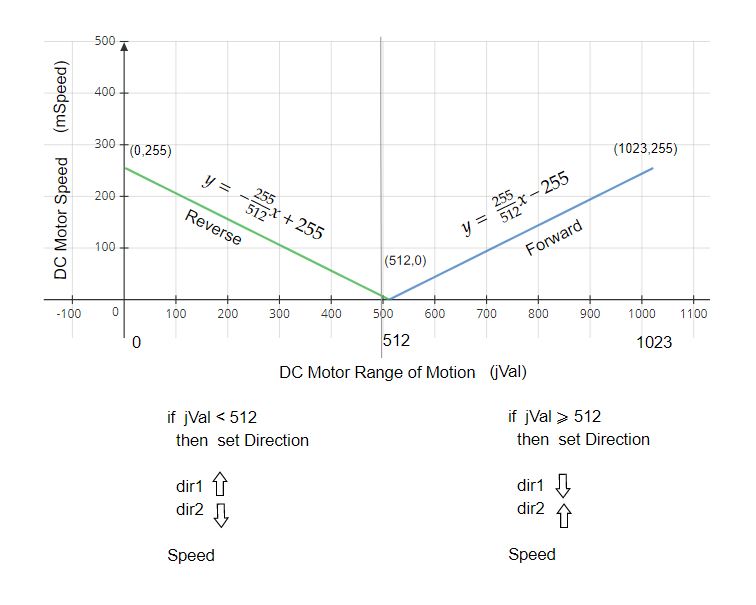
Motor Speed Formulas:

To continuously update the motor speed as a function of gradual joystick movement, it is necessary to read updated joystick values read from memory. As an assigned analog GPIO pin (A1) reads the VRy levels at the joystick, continuous updates are made to memory in order to change motor speed and direction.

Forward and reverse formulas derived for insertion into controller code. To originate continuously changing motor speeds from 0 to 255 or 0 to -255 as read and interpreted analog joystick values between 0 and 1023 (with 512 on center and at rest).

Continuously changing joystick values read into memory becomes calculated for increased or decreased speed adjustment either in a forward or reverse direction. The positive y-axis movement rotates the motor shaft clockwise while the negative y-axis joystick movement rotates the motor shaft counter-clockwise. Both at continuously variable speeds depending upon the joystick’s position off-center from its physically at-rest state.

Thumb joystick and DC Motor suitable for microcontroller use.

Project Review:

It is necessary to pump the joystick to effect charge momentum for break-through motion and reversal. As demonstrated here, the positive y-axis joystick movement rotates the motor shaft clockwise while horizontally negative joystick movement rotates the shaft counterclockwise. The thumb joystick is inverted in this video, so the opposite lateral motion appears counter-intuitive. Reorient the joystick 180 degrees and its motion directly corresponds to the positive and negative movement for positive and negative rotation.


Code Example:

int speedPin=5;
int dir1=4;
int dir2=3;
int mSpeed;
int jPin=A1;
int jVal;

void setup()
{
pinMode(speedPin,OUTPUT);
pinMode(dir1,OUTPUT);
pinMode(dir2,OUTPUT);
pinMode(jPin,INPUT);
Serial.begin(9600);
}

void loop()
{
jVal=analogRead(jPin);
Serial.println(jVal);

if (jVal<505)
{
delay(25);
digitalWrite(dir1,LOW);
digitalWrite(dir2,HIGH);
mSpeed=-255./512.jVal+255.; //derived equation
delay(100);
analogWrite(speedPin,mSpeed);
}

if (jVal>=505)
{
delay(25);
digitalWrite(dir1,HIGH);
digitalWrite(dir2,LOW);
mSpeed=(255./512.)jVal-255.; //derived equation
delay(100);
analogWrite(speedPin,mSpeed);
}
}

Continue Reading ·

Servo Motors with Two-Axis Joystick Control

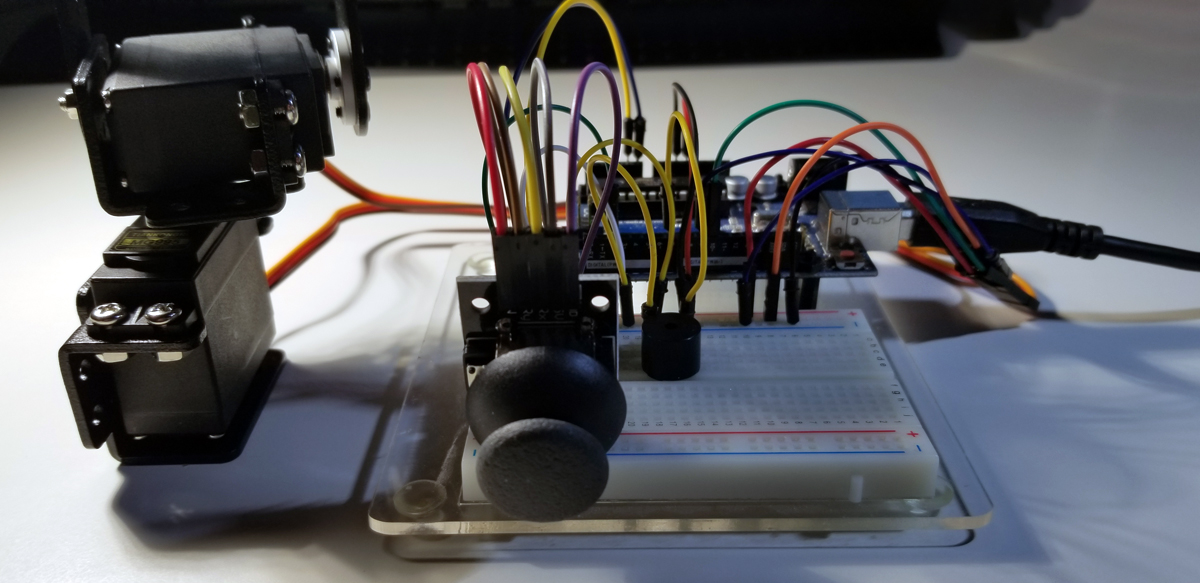
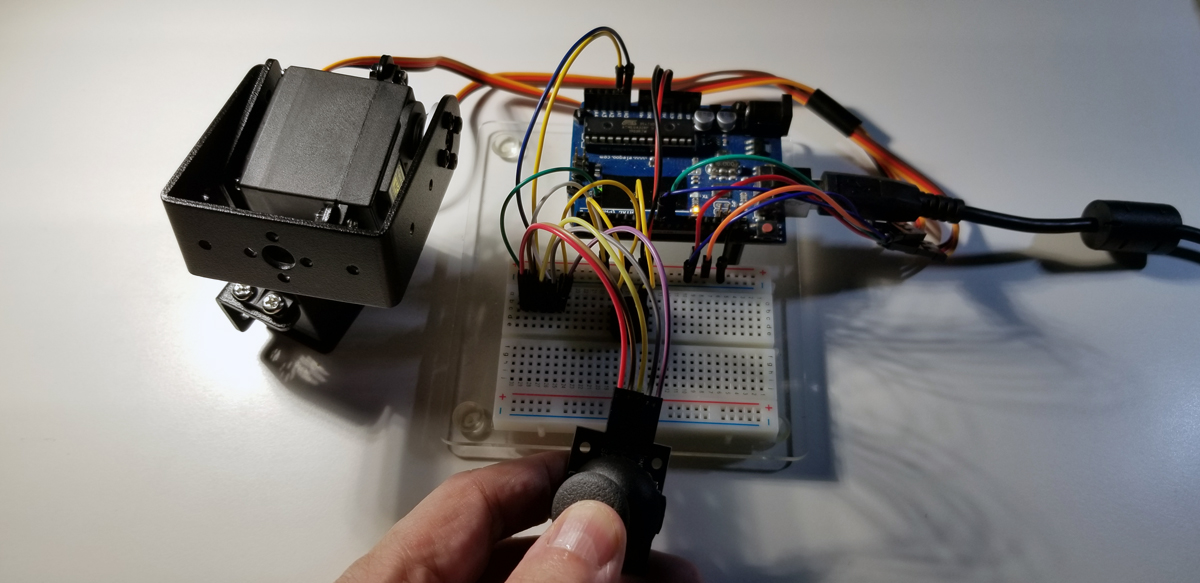
This project makes use of two servos (Tiankongrc MG995), servo mounting brackets a 2-axis thumb joystick, an active buzzer, and an Arduino Uno R3. To operate the two servos together it is necessary to mount them perpendicular to each other. Where one servo moves along 180 degrees horizontally (x-axis) and the other moves 180 degrees vertically (y-axis). While the joystick VRx, VRy, and SW terminals are read by the Arduino through its GPIO pins, their coordinates are interpreted and sent to each servo for positioning. Either by a single manual motion event or as movement continuously read at the servos to rotate from one position to the next.

Two servos, 2-axis thumb joystick, active buzzer, and an Arduino Uno R3.

The active buzzer sounds when the joystick is depressed. It acts as a toggle to represent a select function that corresponds to typical X,Y positioning at a specific point along its movement.

Rotational Movement Control with the Thumb Joystick.

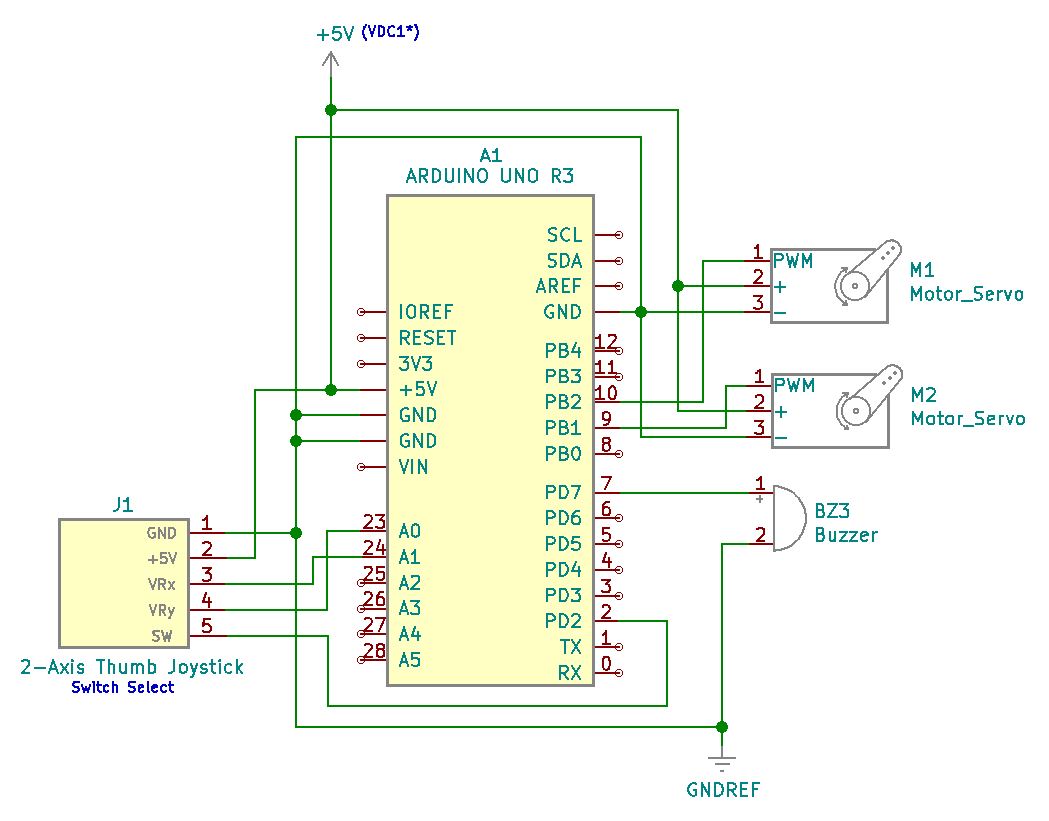
Project Schematic:

Through pulse width modulation pin connections on the Arduino, simultaneously movement control is achieved at both servos. Along with voltage and ground connections shared with the joystick, separate analog connections are terminated for analogRead instructions at the Arduino controller.

Dual X & Y servos with a 2-axis thumb joystick makes use of both PWM and analog input pins.

Project Review:

This video demonstrates the servo motor’s range of motion and precise positioning as the joystick is controlled with its push-button switch.


Code Example:

#include <Servo.h>
Servo Xservo;
Servo Yservo;

int Xpin=A0;
int Ypin=A1;
int Spin=2;
int XSpin=9;
int YSpin=10;
int buzzPin=7;
int WVx;
int WVy;
int Xval;
int Yval;
int Sval;
int dt=200;

void setup()
{
Serial.begin(9600);
pinMode(Xpin,INPUT);
pinMode(Ypin,INPUT);
pinMode(Spin,INPUT);
pinMode(XSpin,OUTPUT);
pinMode(YSpin,OUTPUT);
pinMode(buzzPin,OUTPUT);

Xservo.attach(XSpin);
Yservo.attach(YSpin);

digitalWrite(Spin,HIGH);
}

void loop() {
Xval=analogRead(Xpin);
WVx=(180./1023.)Xval; Yval=analogRead(Ypin); WVy=(180./1023.)Yval;
Sval=digitalRead(Spin);

Xservo.write(WVx);
Yservo.write(WVy);

if (Sval==0)
{
digitalWrite(buzzPin, HIGH);
}
else
{
digitalWrite(buzzPin, LOW);
}

delay(dt);
Serial.print(“X Value = “);
Serial.print(Xval);
Serial.print(” Y Value = “);
Serial.print(Yval);
Serial.print(” Switch State is “);
Serial.println(Sval);
}


Continue Reading ·

Stepper Motor with Direction Control & Reversal

This project involved a 5VDC stepper motor and its corresponding ULN2003 driver assembly. Stepper motors are unique from servos or DC motors because they are very precise, have a full range of motion, and they can produce a lot of torque. This specific motor permits 2048 steps according to its specifications, so each step represents a high level of rotational movement granularity in a small package. –The purpose of the system is to evaluate a simple stepper motor along with its driver assembly to understand their behavior, limitations, and performance characteristics.

The normally closed micro-switch provides a toggle for the stepper motor shaft to move in either a forward or reverse direction. Directionality is set by a code condition determined by the toggle switch transition states whereas the switch is depressed to activate a change of direction opposite the prior rotational motion. Programmatically, the rotational speed is set to about 10 RPM in this project, but speeds are assigned slower as desired.

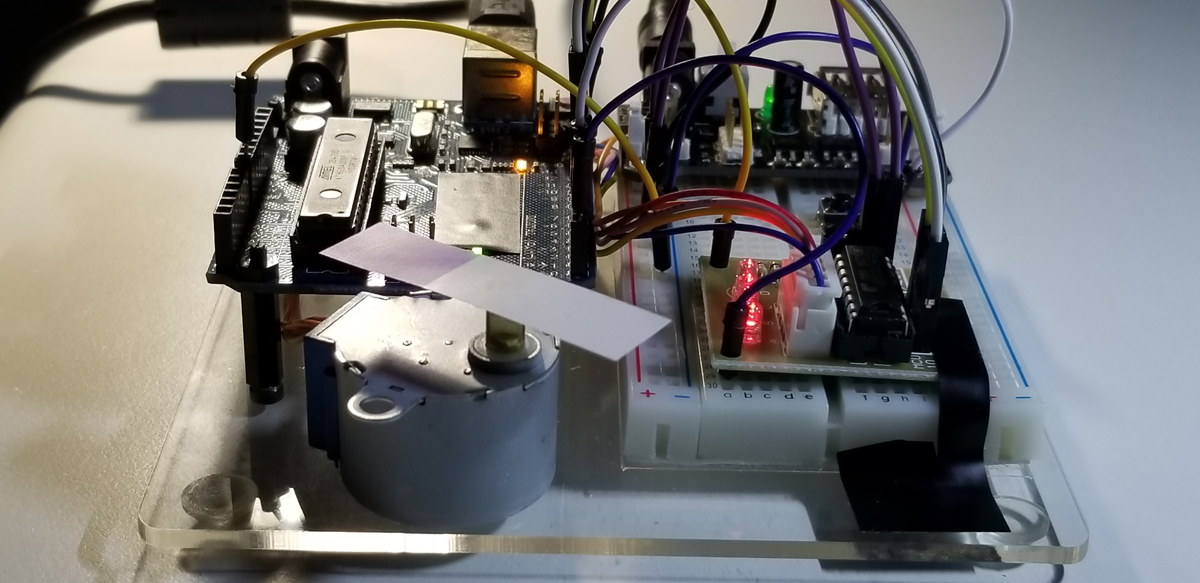
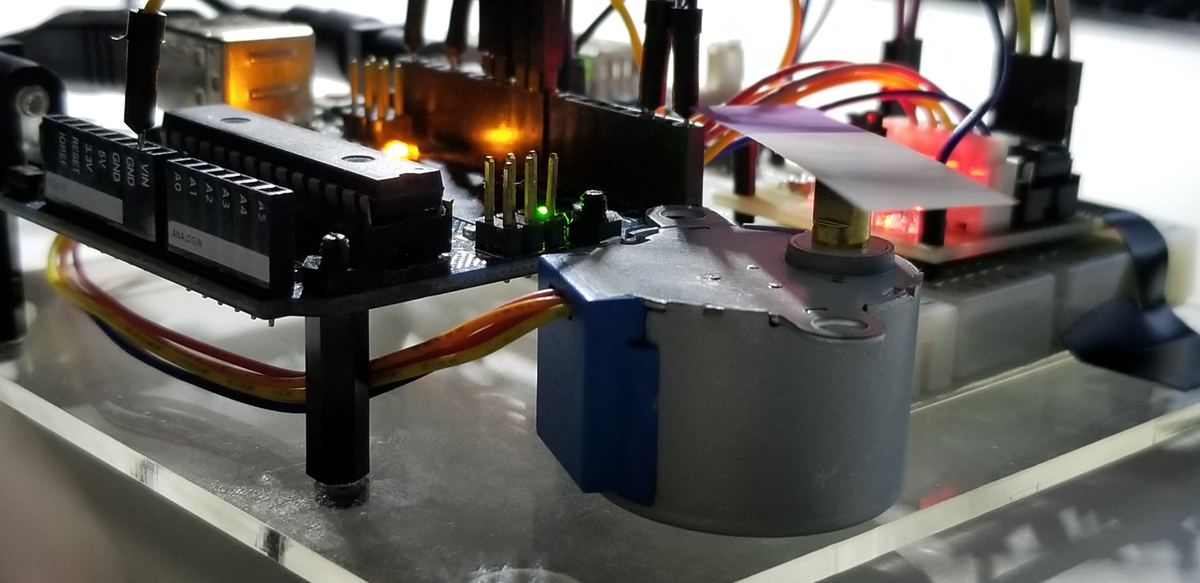
ULN2003 Assembly with Motor and Arduino connections.

Stepper motors are found among many applications today. They allow for precision movement and control of hardware throughout various industries, households, or personal devices. They open lids, doors, and windows. They drive gears to rotate lamps, sensors, cameras, and so forth. The use-cases of stepper motors are very wide-spread.

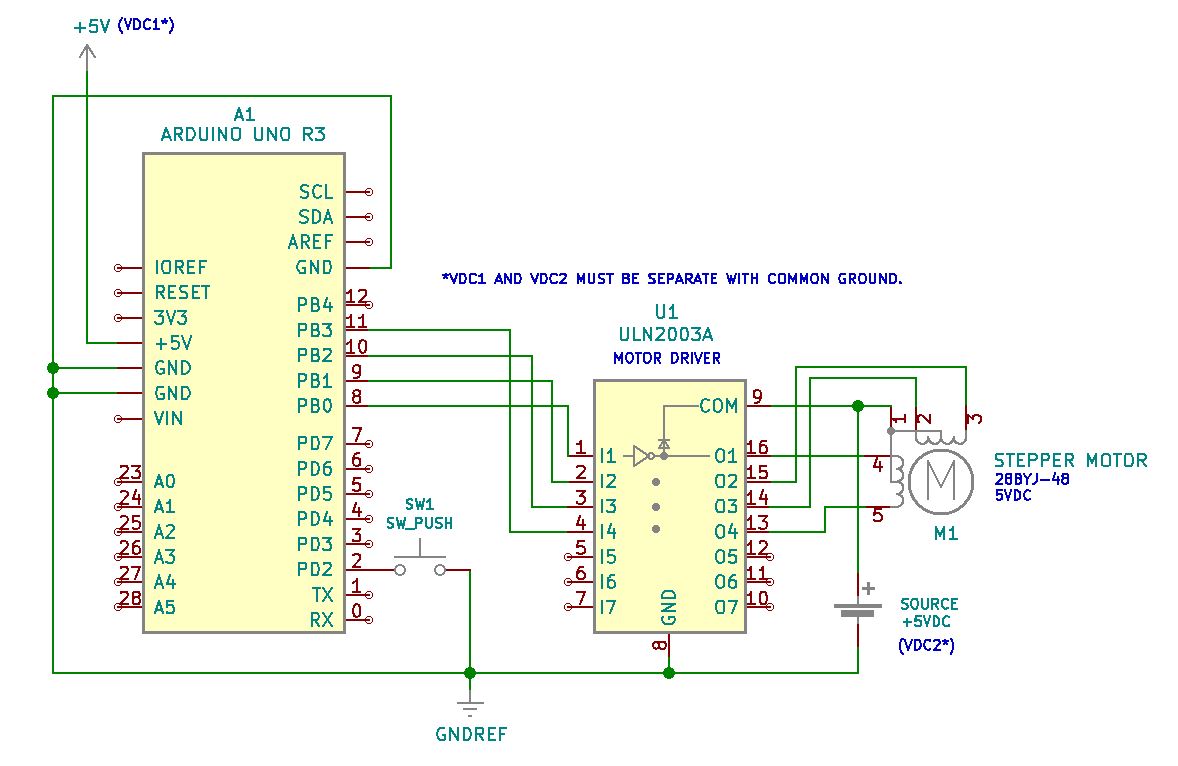
The ULN2003 IC chip located on this assembly is really an array of Darlington pairs that drive up to 500mA at 50VDC. As a current boost is produced from the second Darlington transistor staged after the first of its pair, sufficient current capacity is presented to the terminals of the assembly that hosts the ULN2003. This assembly provides for input and output connections between the stepper motor and an Arduino unit along with LEDs and voltage supply terminals.

Each LED on the ULN2003 indicates the step activity of all four stators. Notice that each stator is in a fixed position with coil wrapping. As each coil is charged on and off, the motor shaft rotates a single step.

The internal workings of the stepper motor convert electrical energy (5VDC in this case) to mechanical movement. In an incremental fashion, all four coils in a fixed position advance the internal rotation in clockwise or counter-clockwise steps (depending upon motor capability). The shaft assembly that extends outside of the motor enclosure provides for a mechanical attachment to get practical use of the stepper motor.

The 28BYJ-48 stepper motor and its ULN2003 driver assembly are separately powered from the Arduino UNO R3 host. Stepper motors draw extra high current to require more power than what an Arduino can support. So this motor runs from a separate wall adapter that delivers 5VDC at 3.5A (~18W).

It is because of this higher motor current requirement that the Darlington pair boost is provided through the ULN2003 assembly. So it is necessary to recognize that motors must be matched with a corresponding driver board that includes a suitable current capacity along with the appropriate types of input and output terminations matched to the motor. Normally, stepper motors have four wires for driver connectivity.

Project Schematic:

The ULN2003 driver hosts a ULN2003 IC chip that terminates to a 28BYJ-48 stepper motor since it is matched to the motor’s operating requirements.

Project Review:

This video demonstrates the stepper motor’s direction of rotation as the pushbutton switch is toggled.


Arduino IDE:

Code Setup:

#include <Stepper.h>
int stepsPerRevolution=2048; //get this step count from the spec sheet
int motSpeed=10; //10 RPM
int dt=500;

int buttonPin=2;
int motDir=1; //variable to keep track direction of motor shaft
int buttonValNew; //present state of the button switch
int buttonValOld=1; //prior state of the button switch initiated as 1 (not pressed)

Stepper myStepper(stepsPerRevolution, 8,10,9,11);
//the numbers are the pin sequence for a specific driver and specific motor connected in a specific way

void setup() {
Serial.begin(9600);
myStepper.setSpeed(motSpeed);
pinMode(buttonPin,INPUT);
digitalWrite(buttonPin,HIGH); //puts a pullup high state onto the button pin
}

void loop() {
buttonValNew=digitalRead(buttonPin);
if (buttonValOld==1 && buttonValNew==0){
motDir=motDir(-1); } //button transition (1,0) sets condition for motor direction change buttonValOld=buttonValNew; myStepper.step(motDir1);

}


Continue Reading ·

Tilt Switch with LED Indicator and Fan Interrupt

This project was about making a tilt sense system that involves a motor or fan. The system is also programmed and set up with a tip sense light. It simulates a tip-over or roll-over situation and when the system reaches a 90-degree angle from level. At 90 degrees, the sensor drive signal shuts everything down through the Nano. It also has industrial applications as there are different tilt switches at different angles.

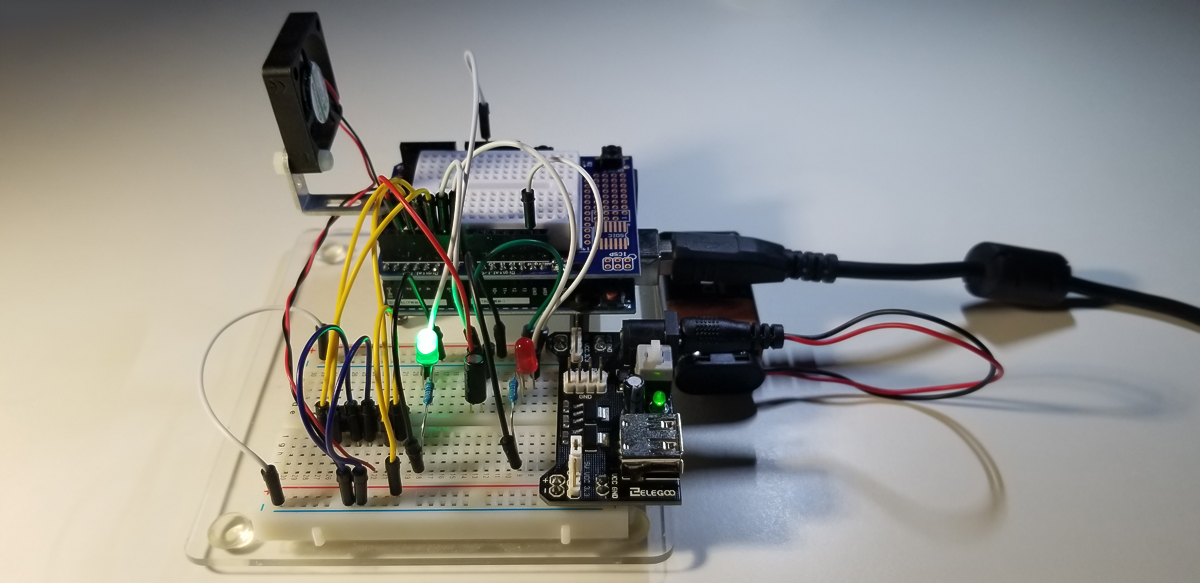
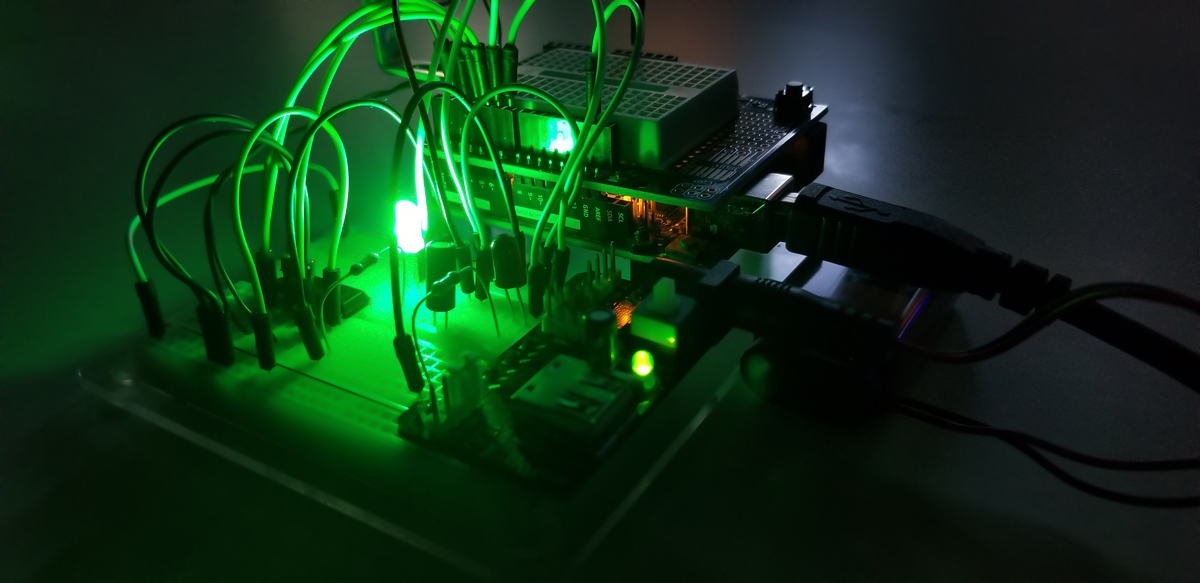
Tilt detection system that senses motion up to a 90 degree angle before motor or fan cut-off. The green LED indicator represents a normal state. While the red LED illumination represents an abnormal state when the system tilts 90 degrees or more.

Normal state of operation with function fan or motor.

Abnormal state of operation with fan interrupted.

Project Schematic:

The system requires separate power supplies to support a higher current draw motor or fan unless the entire system provides for sufficient power or current draw. Motors and fans normally draw much more current that the controller or sensor devices hosted within its system.

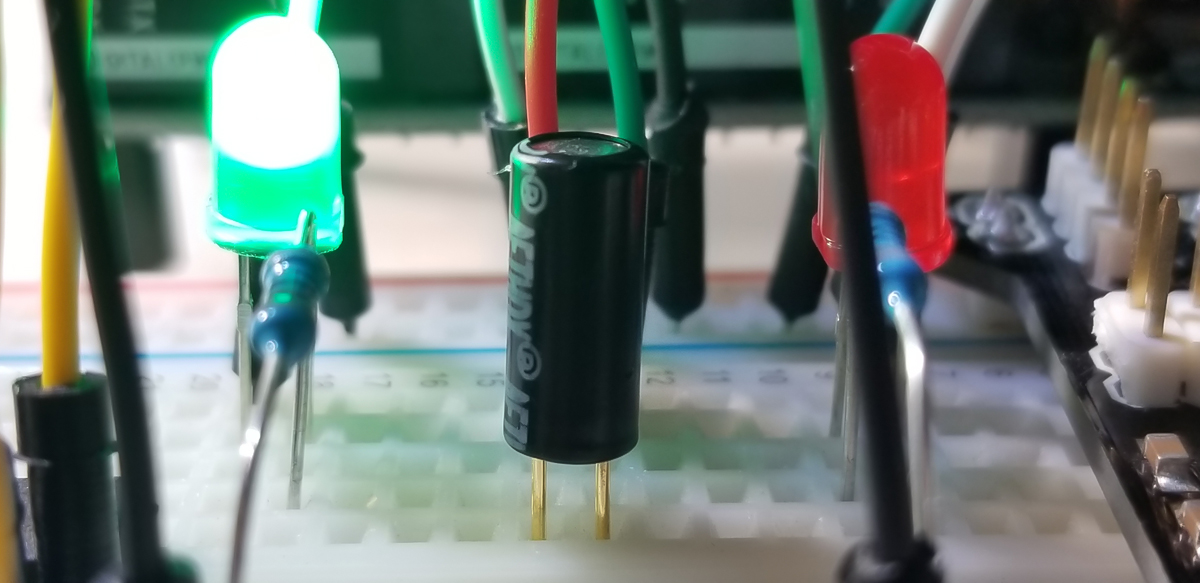
A tilt switch is really just a type of motion sensor that activates after a certain angle from a reference point is reached. Among various approaches toward level detection and sensor motion, this project uses a canister tilt switch that uses a small internal ball that interrupts a closed switch path as it is rolled from one position to another at the component’s specified angle.

At the specified angle, the tilt switch path is open and no further connection between its leads is permitted. For example, in a level state, a tilt device’s upright position settles an internal miniature metal ball for a closed switch path (or “on” function). Conversely, when the position tips beyond its specified angle, the internal metal ball moves to another position where the connection path between the two switch leads become interrupted (or “off” function).

Tilt switch canister with two leads and internal unseen miniature ball.

Project Operation:

The demonstration of this system zooms in on the states of LED illumination and fan movement as its position changes from level (0-degrees) to upright (90-degrees).


Code Setup:

int speedPin=5;
int dir1=4;
int dir2=3;
int mSpeed=255;
int tiltPin=2;
int tiltVal;

int redPin=7;
int greenPin=6;

void setup() {
Serial.begin(9600);
pinMode(speedPin,OUTPUT);
pinMode(dir1,OUTPUT);
pinMode(dir2,OUTPUT);
pinMode(tiltPin,INPUT);
digitalWrite(tiltPin,HIGH); //to assign as pullup pin

pinMode(redPin,OUTPUT);
pinMode(greenPin,OUTPUT);
}

void loop() {
digitalWrite(dir1,LOW);
digitalWrite(dir2,HIGH);
tiltVal=digitalRead(tiltPin);
Serial.println(tiltVal);
if (tiltVal==0){
digitalWrite(greenPin,HIGH);
digitalWrite(redPin,LOW);
analogWrite(speedPin,mSpeed);
}
if (tiltVal==1){
digitalWrite(greenPin,LOW);
digitalWrite(redPin,HIGH);
analogWrite(speedPin,0);
}
}


Continue Reading ·

Light Sensor Control of Servo with Photoresistor

This project makes use of a photoresistor as a light sensor to control the movement of a servo motor’s shaft. The change of position in the servo motor’s output shaft moves from 0 degrees to 180 degrees maximum depending upon the light intensity present at the photoresistor. The highest level of light places the output shaft arm to 0 degrees while the absence of light at the sensor moves the output shaft arm to about 180 degrees. The actual range of motion is limited to the quality of the servo, but 180 degrees is generally the limit.

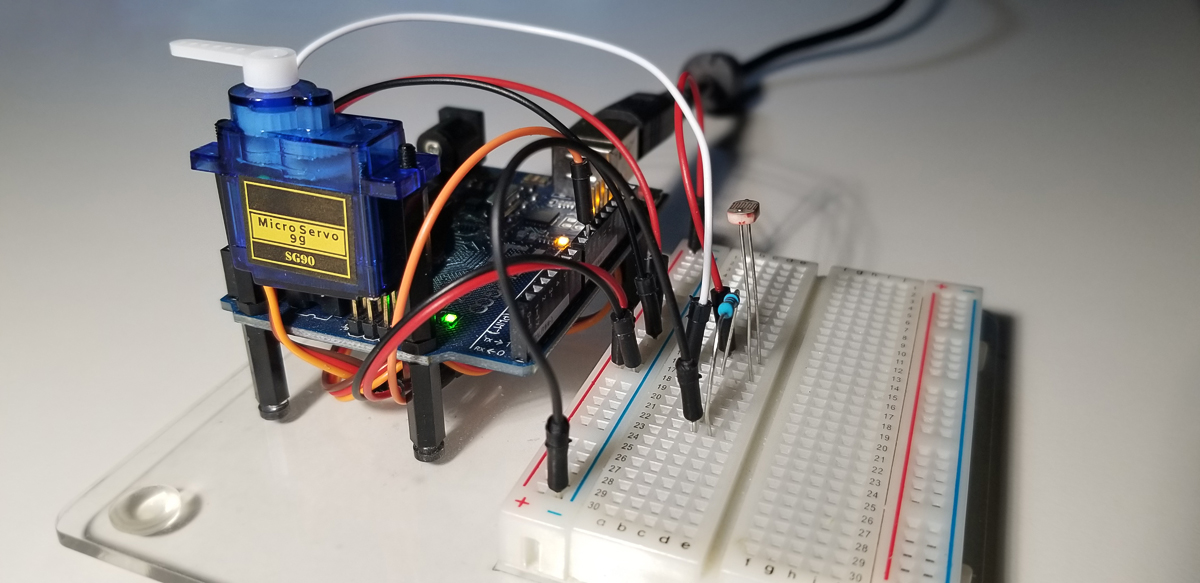
All components in the system are powered by the Arduino Uno (R3) through the USB connection from a local supply or computer.

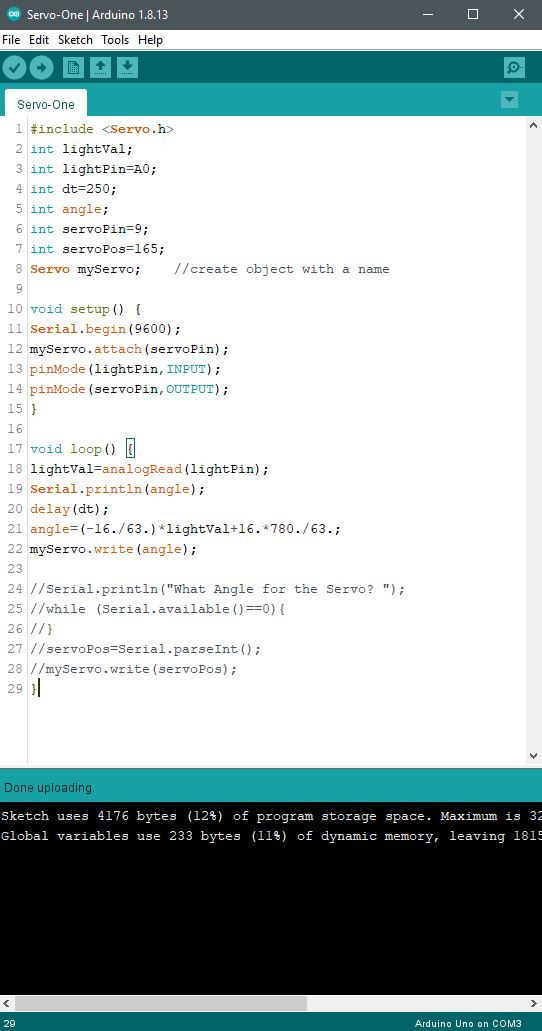
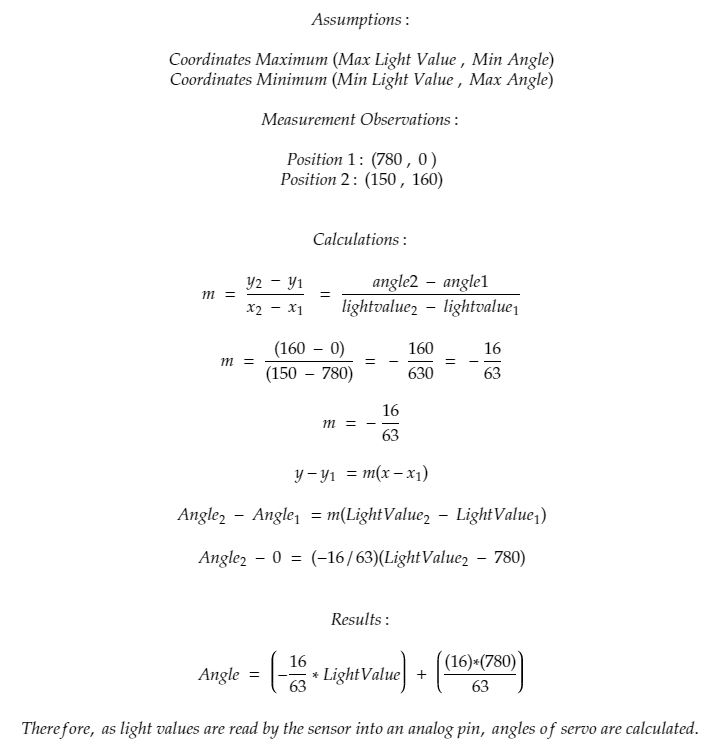
The purpose of the project is to demonstrate the simple use of a servo for the automatic positioning of a physical object as a function of light intensity. The light sensor is read at an analog GPIO pin to get continuously variable values to read into memory via an analogRead operation. The motor response to continuous analog read activity (with a small 250ms delay between each) is calculated to a PWM output level written to a port where the output shaft moves at a corresponding angle.

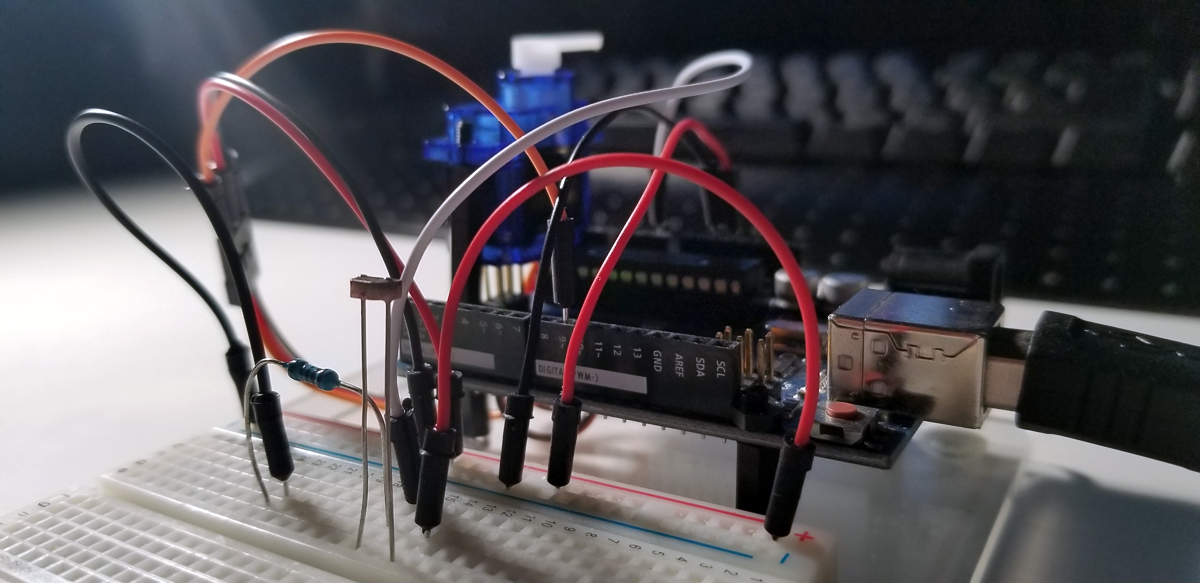
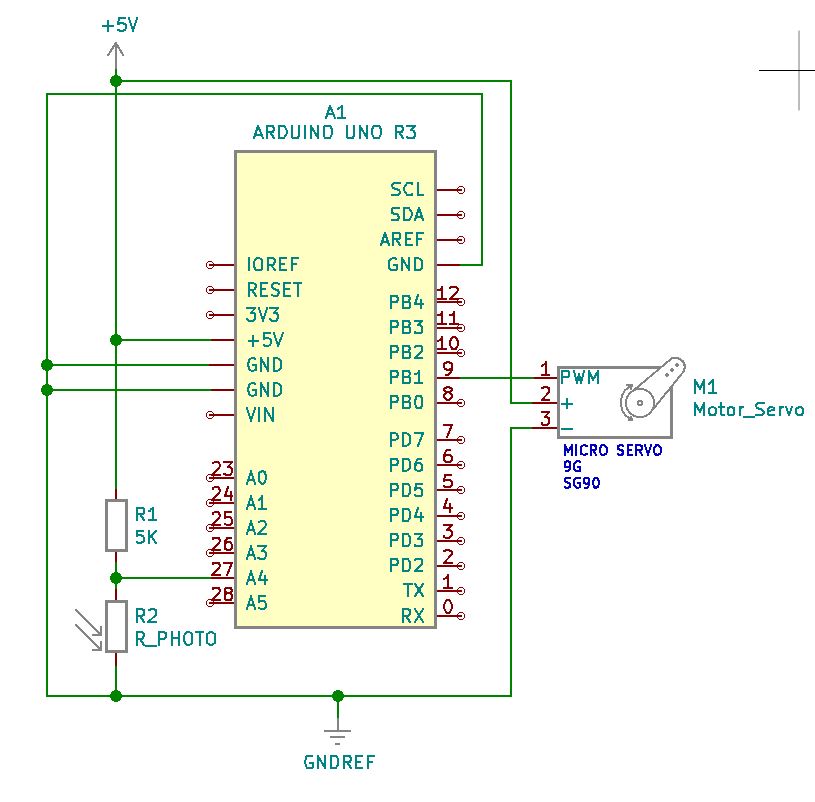
The micro servo mounts nicely onto the Arduino Uno in a secure way through the two standoffs on the controller. The various terminal connections in this photo correspond to the schematic diagram posted below.

The resistor is 5K-ohms with the analogRead connection between it and the photoresistor for active continuous input to the Arduino.

Project Operation:


Project Schematic:

Arduino IDE:

Servo Output Angle Calculations:

Code Setup:

#include <Servo.h>
int lightVal;
int lightPin=A4;
int dt=250;
int angle;
int servoPin=9;
int servoPos=165;
Servo myServo; //create object with a name

void setup() {
Serial.begin(9600);
myServo.attach(servoPin);
pinMode(lightPin,INPUT);
pinMode(servoPin,OUTPUT);
}

void loop() {
lightVal=analogRead(lightPin);
Serial.println(angle);
delay(dt);
angle=(-16./63.)*lightVal+(16.*780.)/63.;
myServo.write(angle);
}


Continue Reading ·